
Delete Routes From Routes Page — Remove Single Or Multiple Routes
Route4Me’s last mile route software helps enterprise businesses quickly remove routes that are no longer needed, whether deleting a single route or multiple routes at once. This guide walks you through removing routes from your Routes Page, helping your team maintain an accurate and up-to-date route schedule. NOTE: Once deleted, a route and all associated data are permanently removed and cannot be restored.
Table of Contents
Delete A Single Route – Remove Existing Route From Routes Page
To remove a route from your Routes List, go to “Dynamic Routing” > “Routes” from the Navigation Menu.
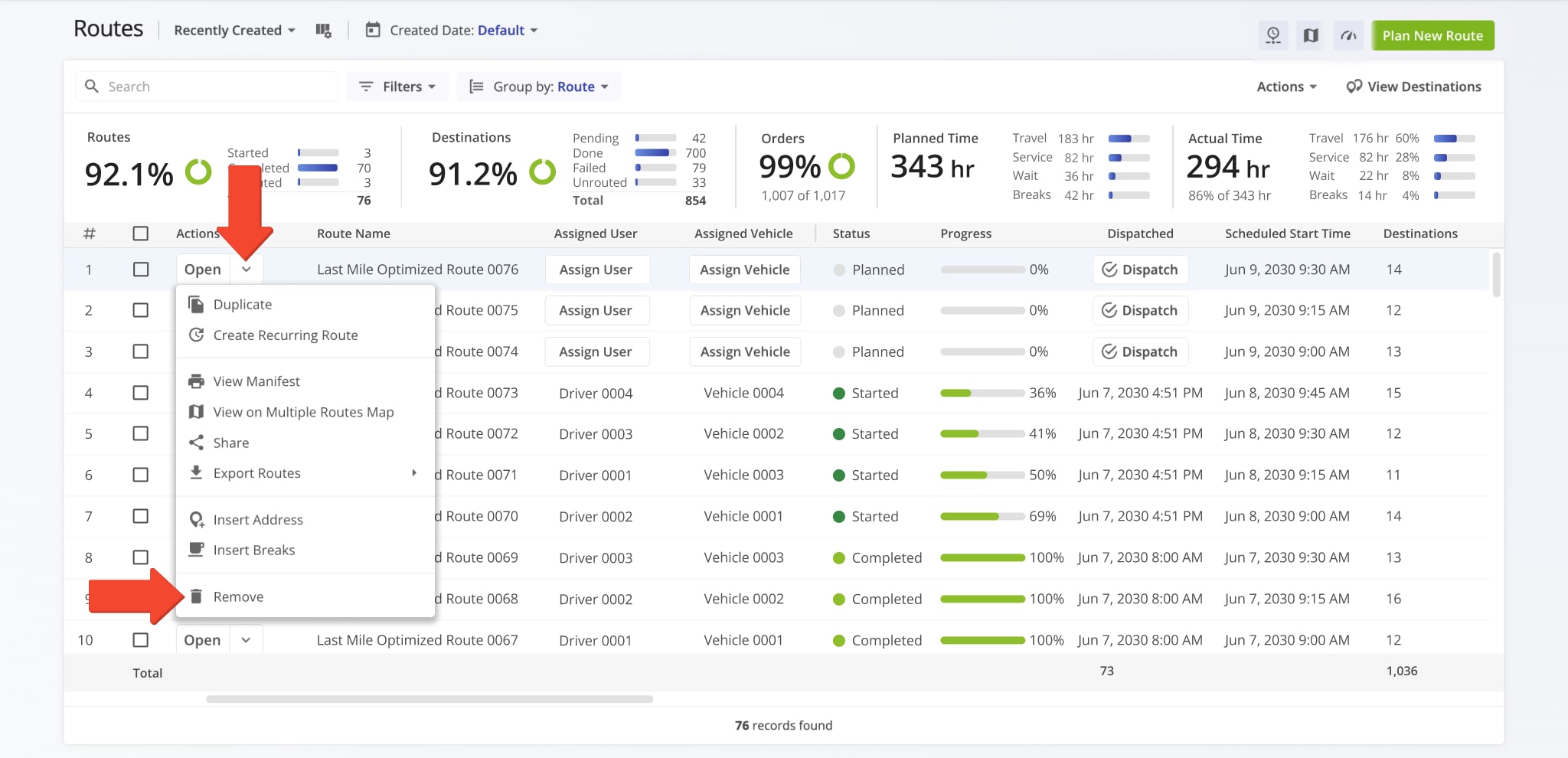
Locate the route you want to delete, click the Down Arrow next to it, and select “Remove“. You will then be prompted to confirm that you want to remove the route. The system will automatically delete it from your Routes Page.
NOTE: Once you delete a route, it is permanently removed and cannot be restored.
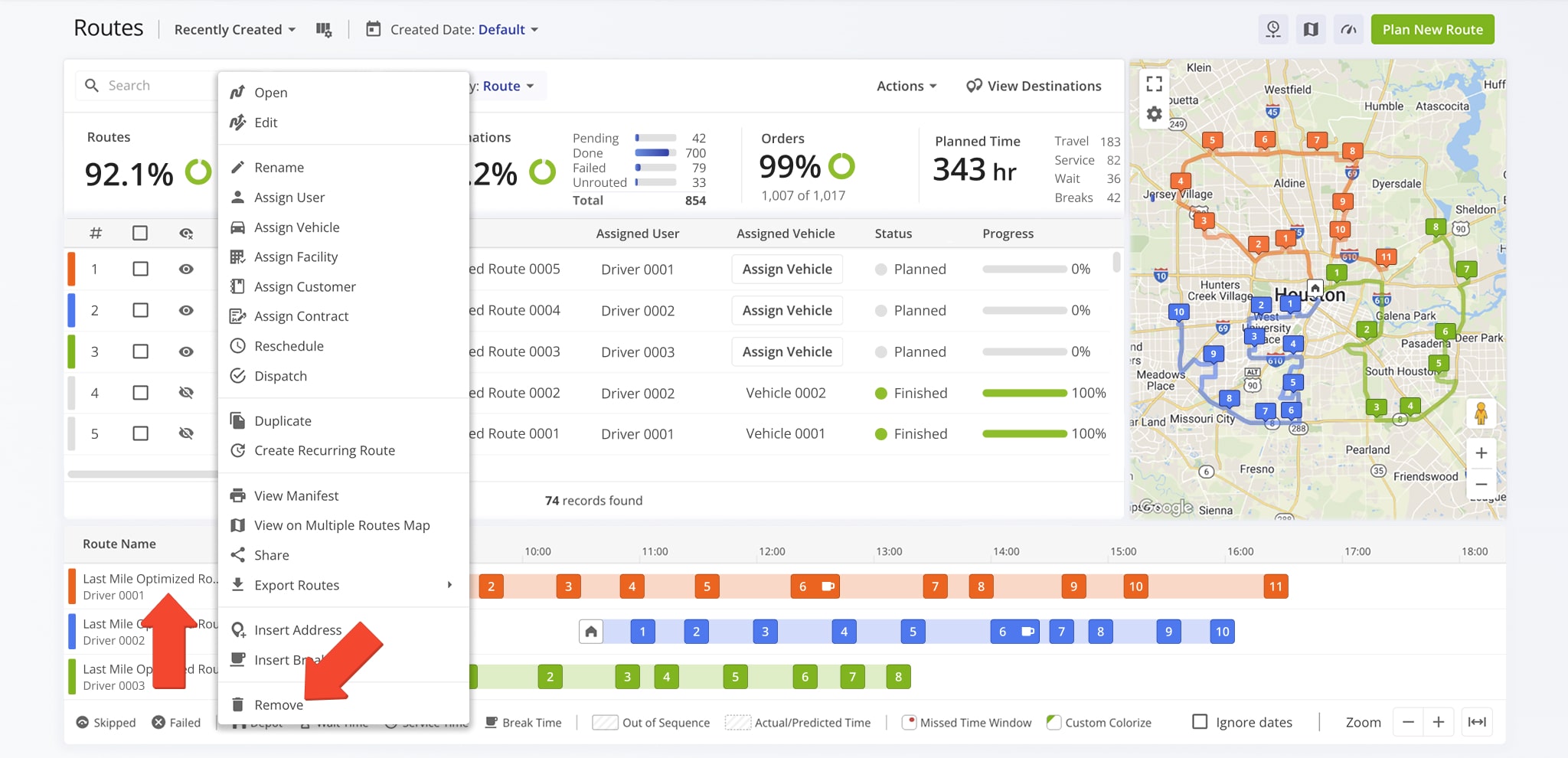
You can also remove a single route from the Routes Timeline. Right click the route you wish to delete, select “Remove“, then confirm that you want to remove it. Route4Me will automatically delete it.
NOTE: Deleting a route from the Routes Timeline is permanent and affects all users who have access to that route.
Delete Multiple Routes – Save Time With Bulk Route Removal
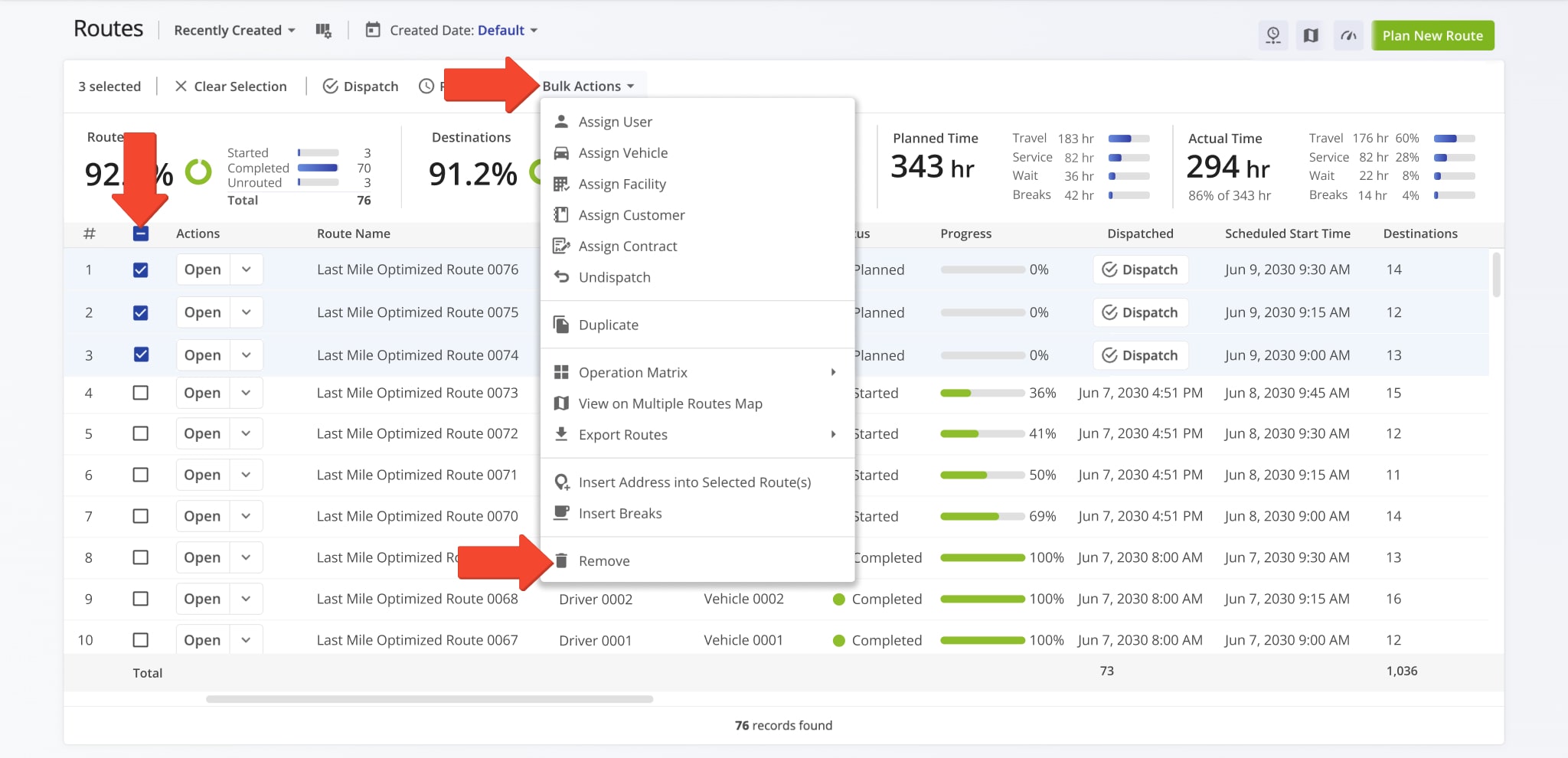
To delete multiple routes at once from your Routes List, select the checkboxes next to the ones you want to remove. Then, click “Bulk Actions” in the top menu and choose “Remove” from the Actions Menu.
NOTE: Bulk deletion applies to all selected route. Verify your selection before confirming.
Optimize New Route – Plan New Route Using Existing Destinations
If a deleted route needs to be recreated, you can plan a new route using the same destinations through the Route Planner. This allows you to rebuild routes using existing addresses or orders and apply manual or automated optimization during planning.
Once saved, the newly planned route appears on your Routes Page as a new route. NOTE: Recreated routes are treated as entirely new routes. Previous route progress, attachments, tracking history, and other associated data are not restored.
Visit Route4Me's Marketplace to Check out Associated Modules:
- Route Optimization
Mixed Vehicles Routing
- Route Optimization
Route Optimization for Multiple Drivers Without Advanced Constraints
- Route Optimization
Commercial Vehicle Route Planning

