
Route4Trucks Enterprise – Commercial Vehicle And User Management Guide
Route4Trucks is the best GPS truck navigation and multi-destination truck route planner for commercial drivers, and company drivers. With Route4Me, managers can seamlessly add and manage truck drivers and commercial vehicles with custom parameters. Company truckers can then effortlessly sign in to Route4Trucks and use the assigned trucks, plan multi-destination commercial vehicle compliant routes, and continuously navigate routes with safe, voice-guided truck GPS navigation. In this guide, you’ll learn how to add and manage team members and commercial vehicles on Route4Me for use with the Route4Trucks commercial driver app.
NOTE: Commercial driver and vehicle management are enterprise features of the Route4Trucks app. To enable this integration of Route4Trucks with your Route4Me team and fleet management functionality, contact Route4Me support.
Table of Contents
Add Drivers – Create New User Profiles For Truck Drivers On Route4Me
Route4Me enables enterprise businesses to easily create trucker profiles. This enables drivers to seamlessly log in to their account, confirm vehicles, and plan and navigate truck routes to customers, truck stops, and any other type of destination.
Route4Me offers several ways to add users to your team. You can create profiles manually, bulk upload via spreadsheet, or send email invites to new team members. To view your team’s reporting structure, use the “Tree View” toggle at the top of the page.
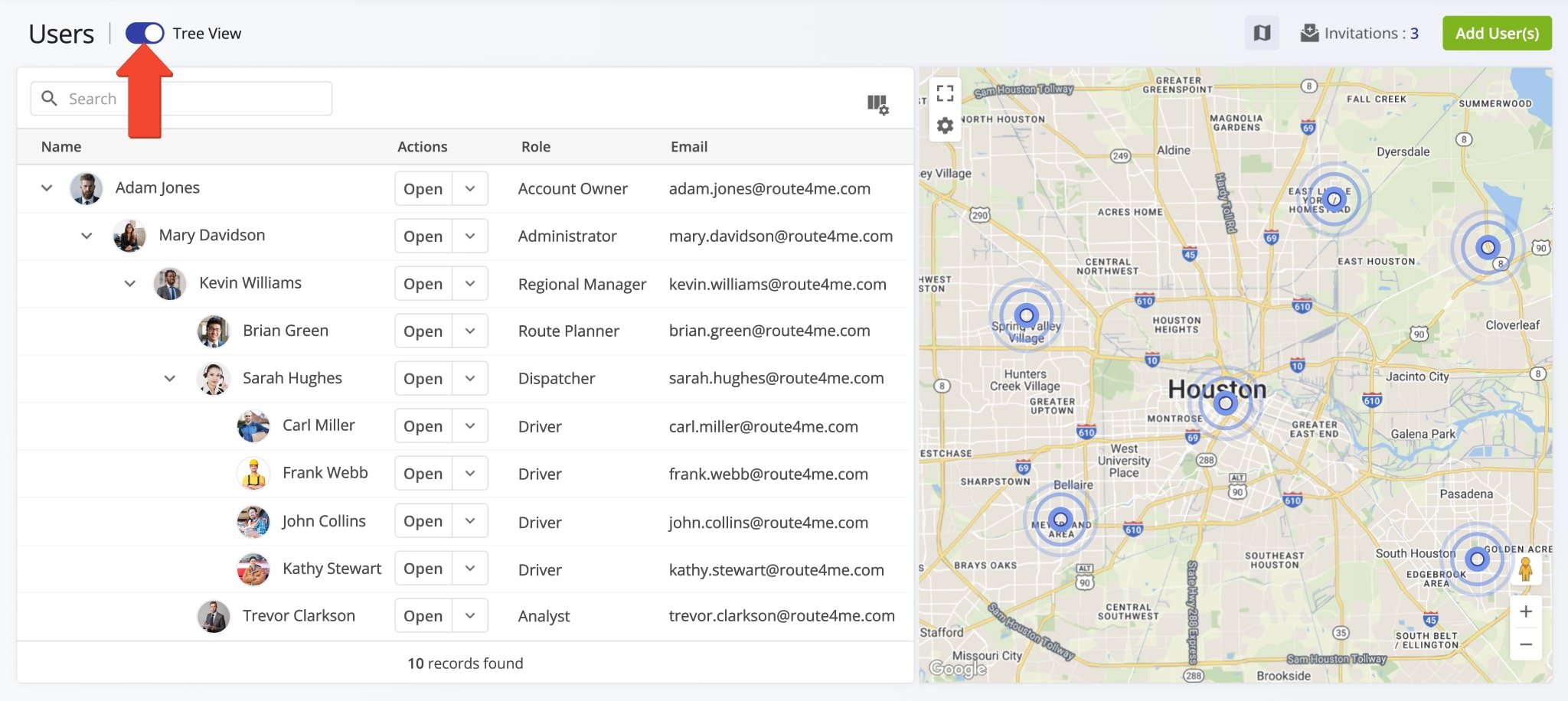
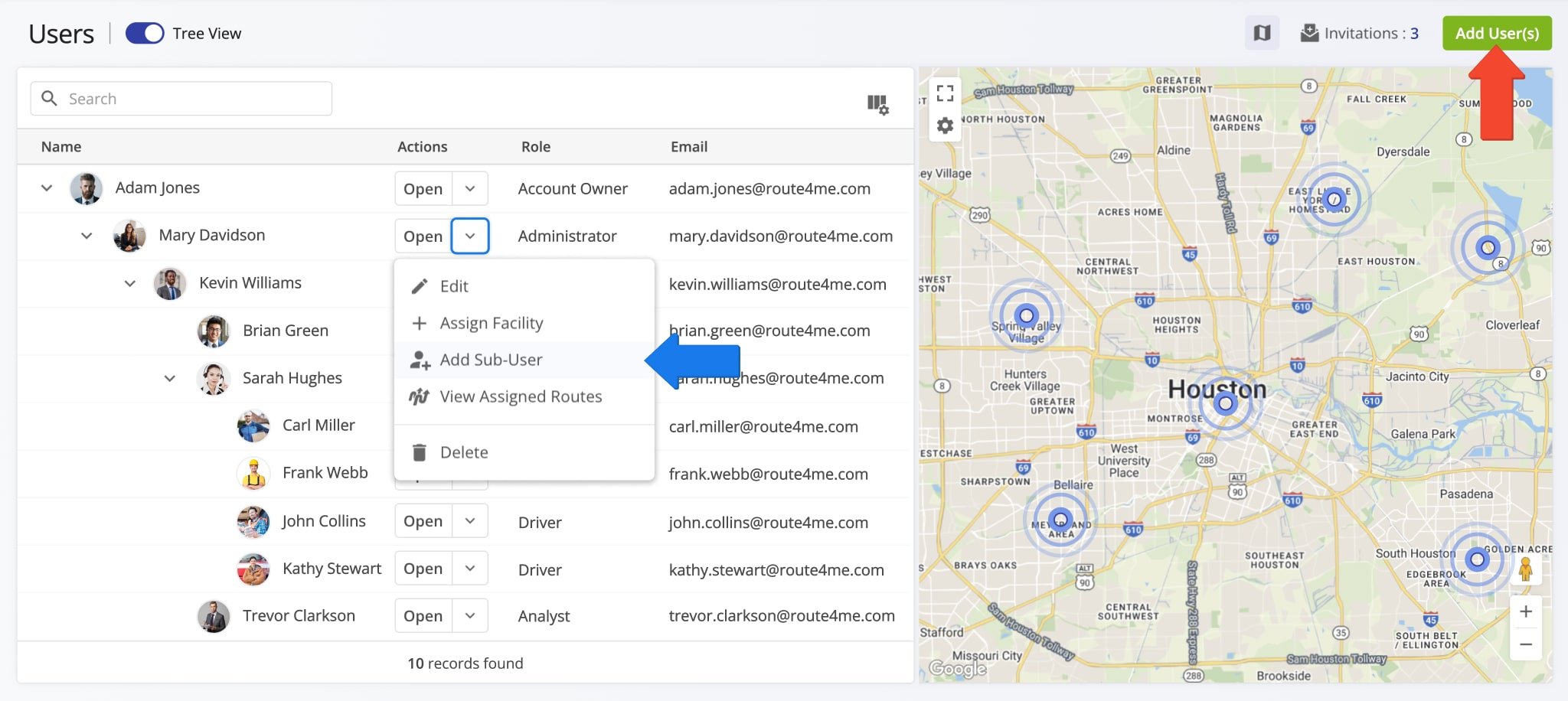
To create a new user, go to “Team & Equipment” > “Users” in the Navigation Menu, then, from your Users page, click “Add User(s)“. Alternatively, click the Down Arrow Button next to an existing user and select “Add Sub-User“.
Your ability to view and manage users depends on your User Type. Based on your permissions, you can add sub-users with different roles and assign them under your account or another team member.
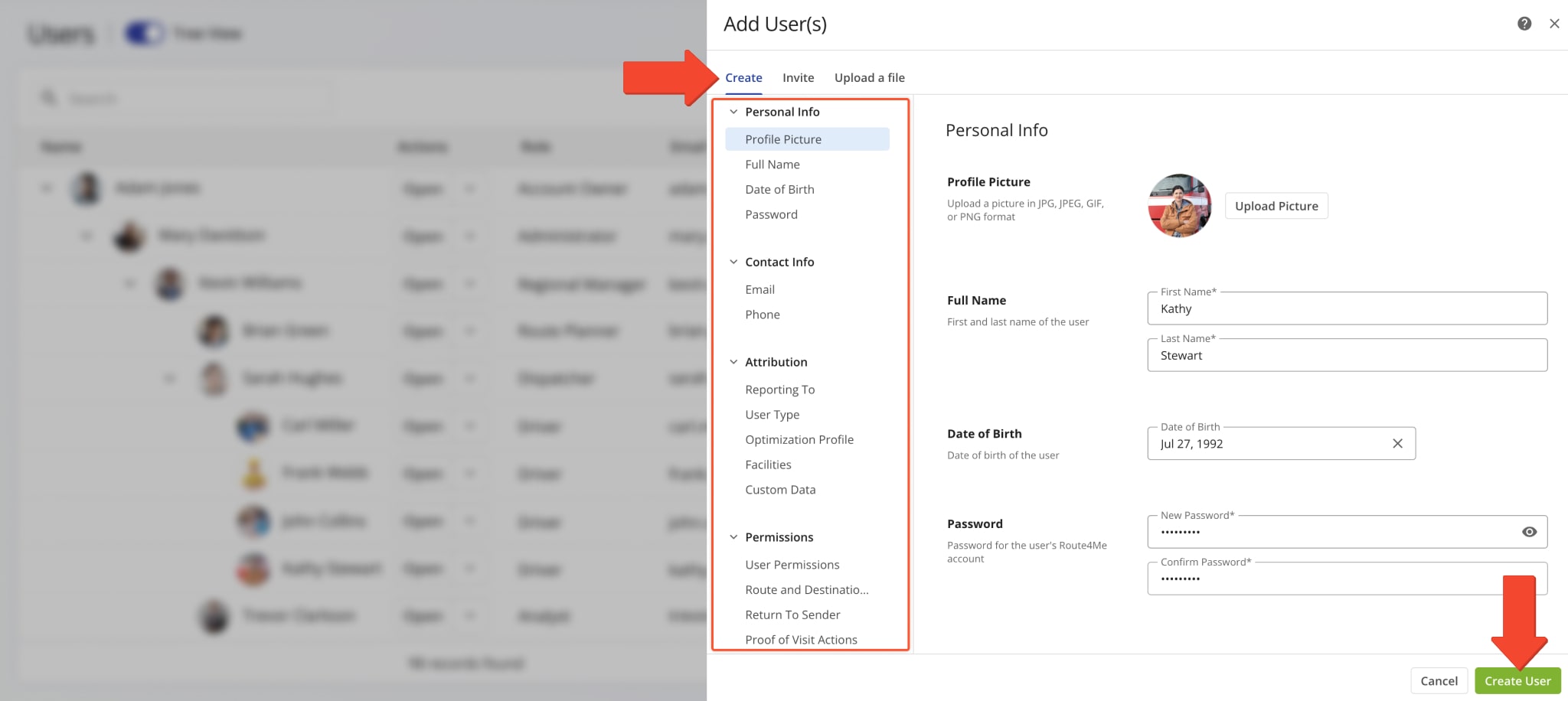
Next, click the “Create” tab to manually set up a new user account. Fill in the required profile fields, then click “Create User” to add the user to your team. Learn more about creating new users on Route4Me TMS.
NOTE: Route4Trucks supports Google SSO. To enable a User to sign in to the app with their Gmail address, make sure they have a Google account and input the respective Gmail email addresses in the “Email” field when creating a new User.
Manage Drivers – Edit Commercial Driver Profile Details And Settings
On your Users page, you can view and manage all users associated with your Route4Me account. Likewise, each user can see and manage the sub-users assigned under them.
To view a User Snapshot, an overview of key metrics and details associated with the user, click the “Open” button. To edit a profile, click the Down Arrow next to their name. This opens a menu with additional options, described below.
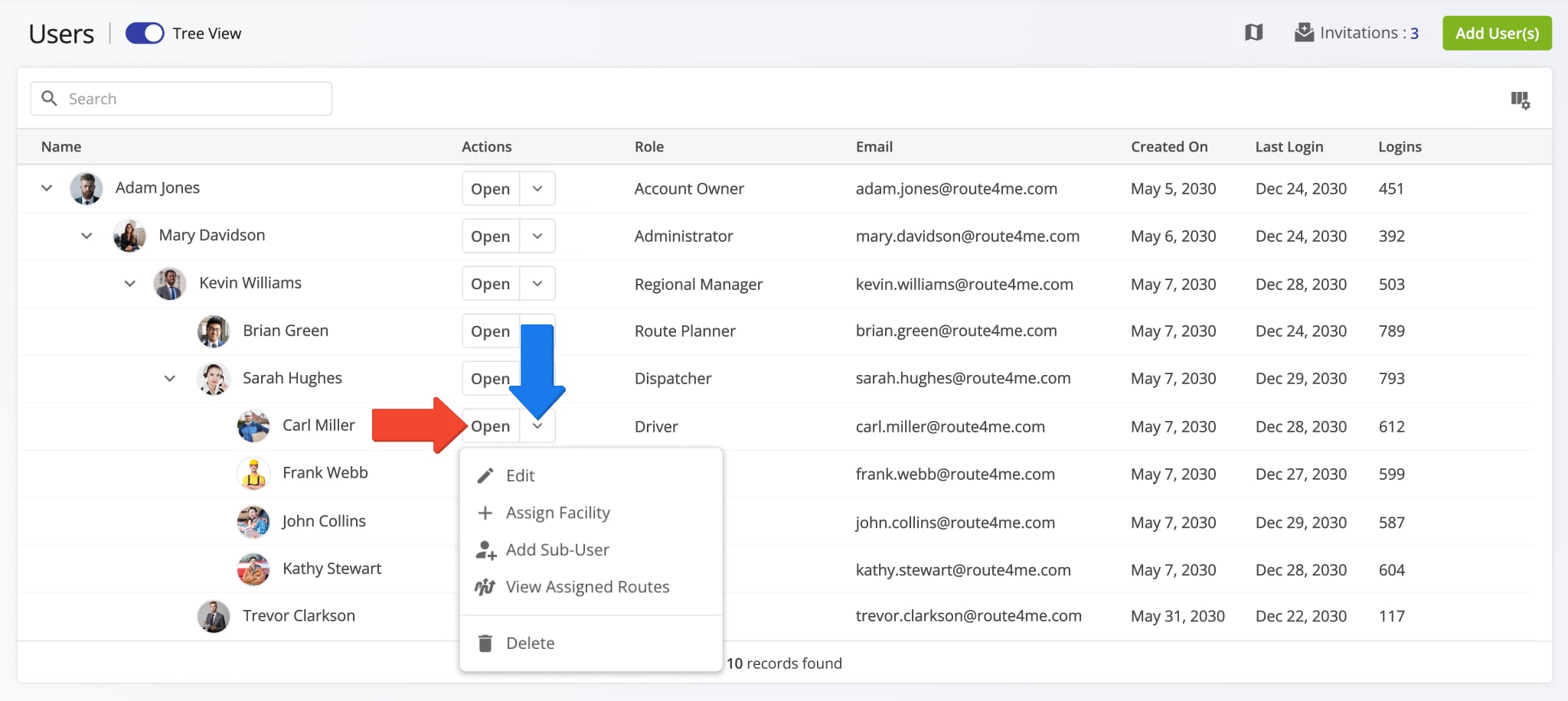
| Action | Description |
|---|---|
| Edit | Update the same settings available during manual User creation. NOTE: A User’s email address cannot be edited. To use a different email, delete the existing account and create a new one. |
| Assign Facility | Associate a User with a Facility on your Route4Me account. For Route4Trucks Users, assigning a Facility enables selecting and confirming Vehicles with the same assigned Facility. |
| Add Sub-User | Add a new sub-user with the respective User Type that will report to the given user. Learn more about creating new users and sub-users. |
| View Assigned Routes | Open the list of all routes that the User is assigned to. Learn more about assigning drivers and users to routes. |
| Delete | Delete the user. NOTE: Deleting a User can’t be undone. To get help with deleting users, Contact Route4Me Support. |
Add And Manage Commercial Vehicles – Create And Edit Truck Profiles In Last Mile TMS
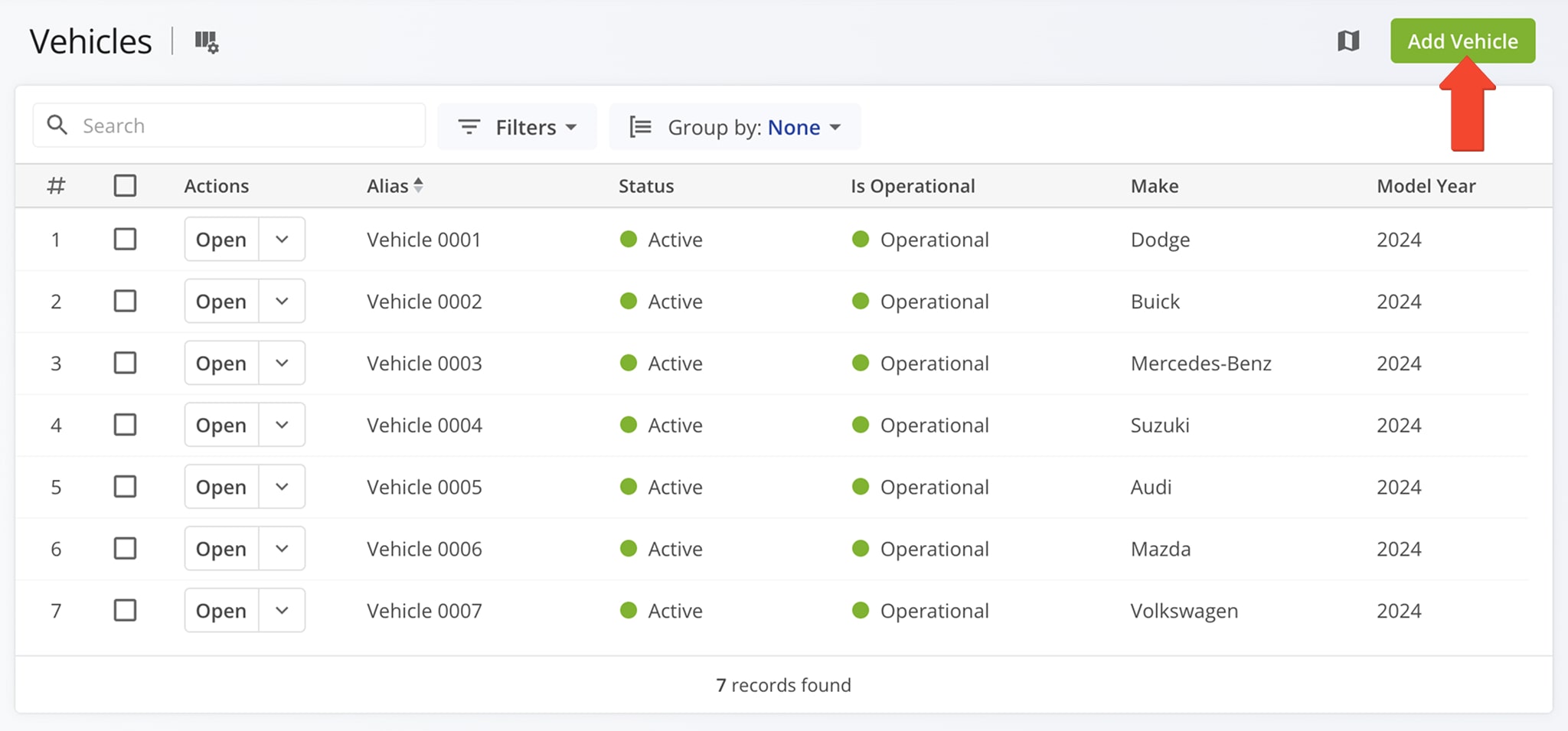
With Route4Me’s route optimization and fleet management software, you can easily create and coordinate a fleet of trucks, trailers, semis, heavy equipment, and any other vehicles. To add a new commercial vehicle truck to your trusted truck routing software, go to “Team & Equipment” > “Vehicles” from the Navigation Menu and click the “Add Vehicle” button.
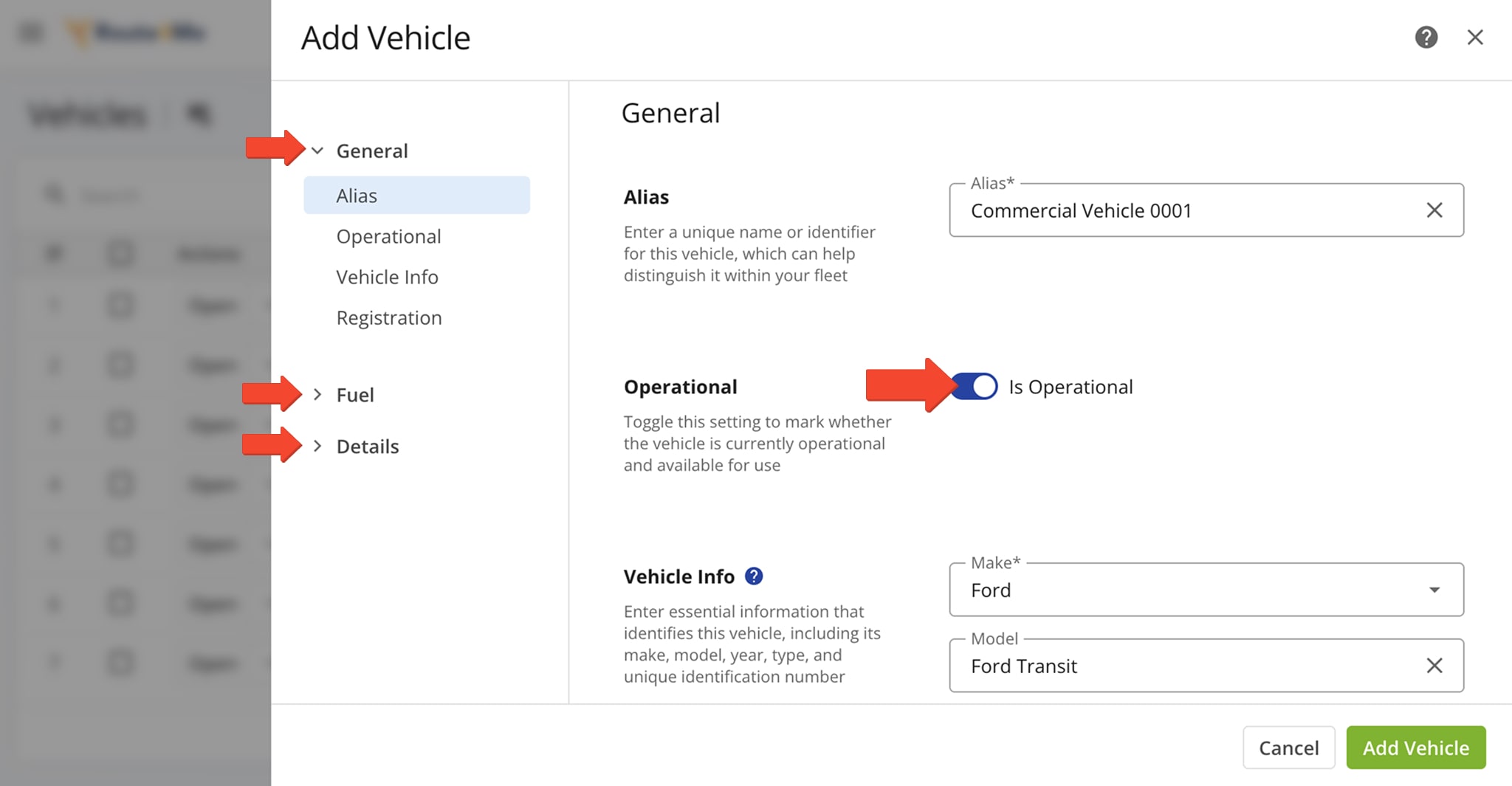
Before you can finalize a Commercial Vehicle Profile, you’ll need to make sure all the Vehicle’s “General“, “Fuel“, and “Details” settings are complete and that its status is set to “Is Operational“. This ensures it appears in your list of assignable vehicles for routes. Learn more about adding and managing vehicles.
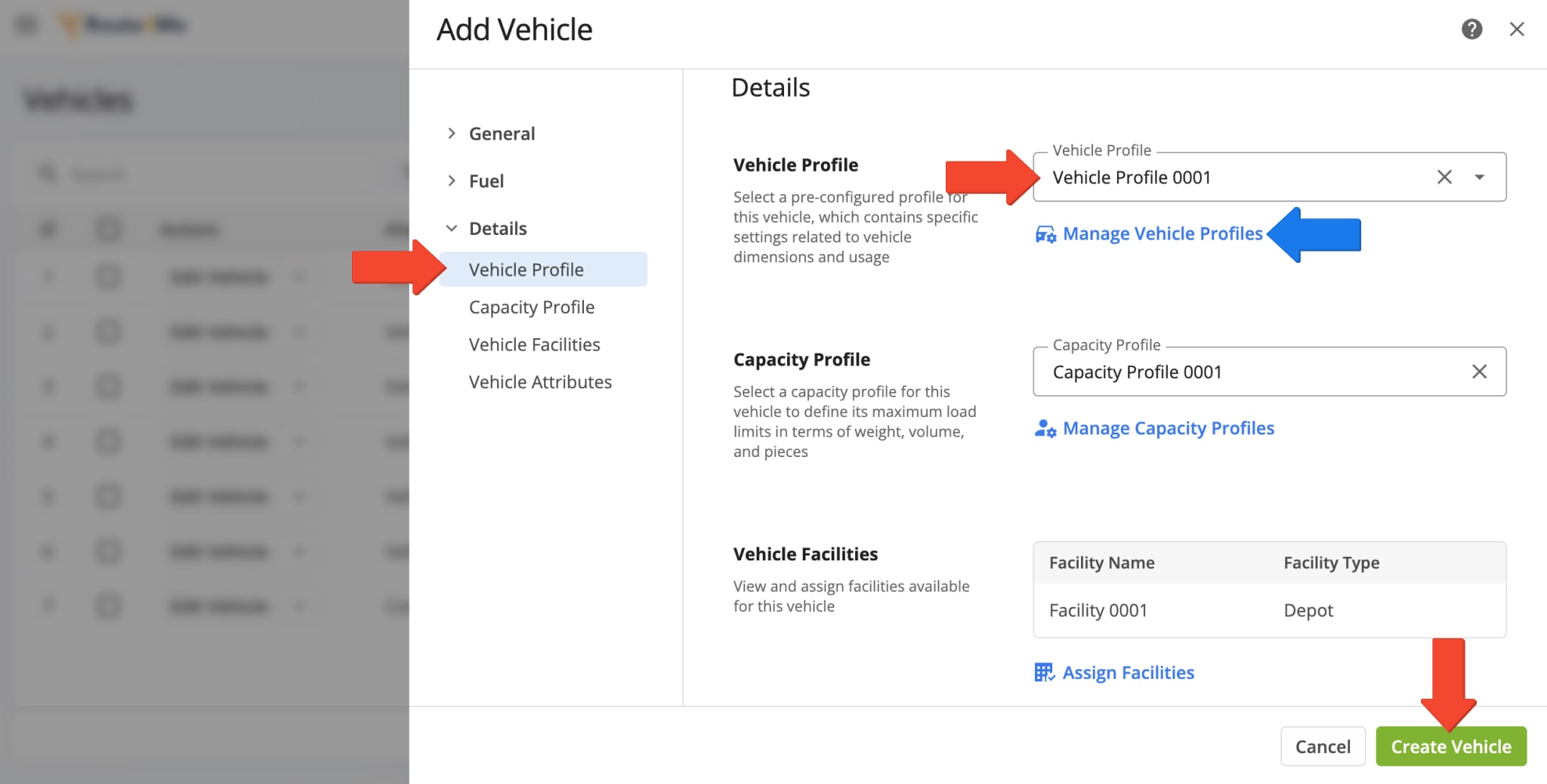
To create a new Commercial Vehicle, you need to select or create a Vehicle Profile with commercial vehicle details such as height, weight, axle count, etc. Scroll down to “Vehicle Profile“, located in the “Details” section, select a profile, and click “Create Vehicle” when done.
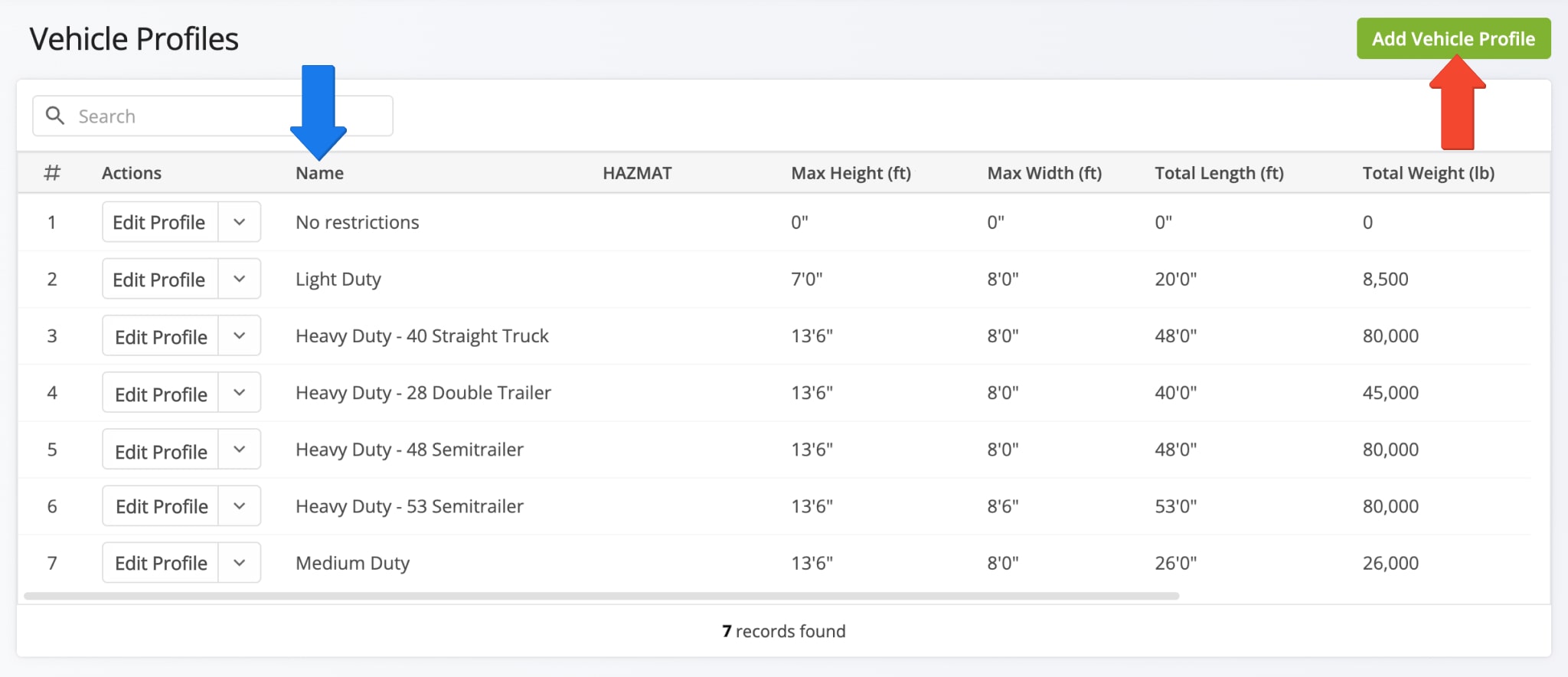
Alternatively, click “Manage Vehicle Profiles” to create a new Commercial Profile or manage existing ones. You’ll be redirected to the Vehicle Profiles page, where you can see your existing Vehicle Profiles and create new ones.
On the Vehicle Profiles page, you’ll find default profiles that match the most commonly used Commercial Vehicle types. You can also create your own custom Commercial Vehicle Profile by clicking the “Create Profile” button. Learn more about adding new Commercial Vehicle Profiles.
Assign Facilities To Commercial Drivers And Commercial Vehicles
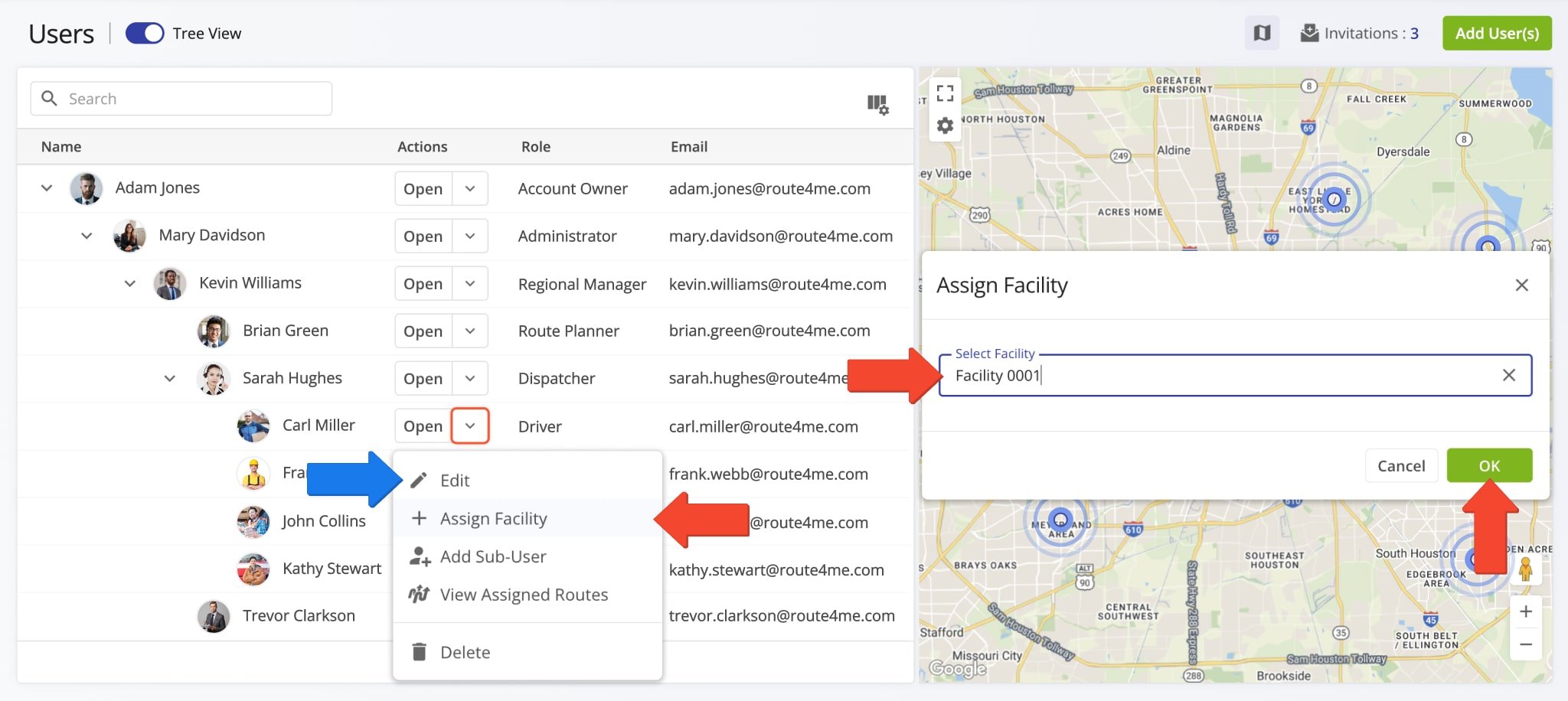
When Users and Vehicle have the same Facility assigned to them, truckers can use Route4Trucks to confirm the details of Vehicles assigned to the same Facility. To assign a Facility to a User, go to “Team & Equipment” > “Users” in the Navigation Menu, click the Down Arrow next to a User, select “Assign Facility“, input a Facility name in the “Assign Facility” window, and click “OK“.
You can also select “Edit” from the User Management actions menu and assign a Facility. Learn more about editing Users.
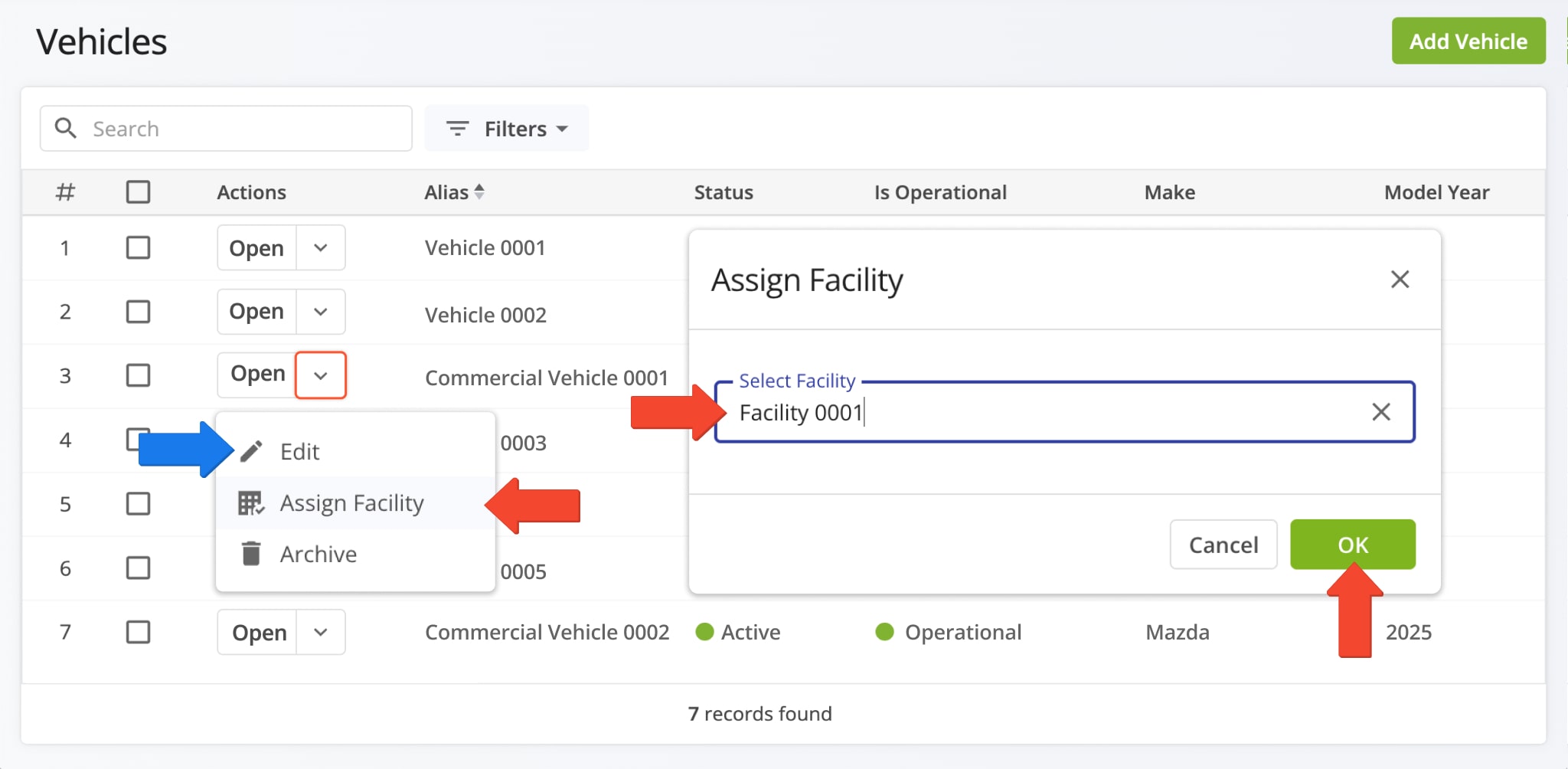
The process is the same for assigning a Facility to a truck. Go to “Team & Equipment” > “Vehicles” in the Navigation Menu, click the Down Arrow next to a Vehicle, select “Assign Facility“, input a Facility name in the “Assign Facility” window, and click “OK“.
You can also select “Edit” from the Vehicle Management actions menu and assign a Facility. Learn more about editing Vehicles.
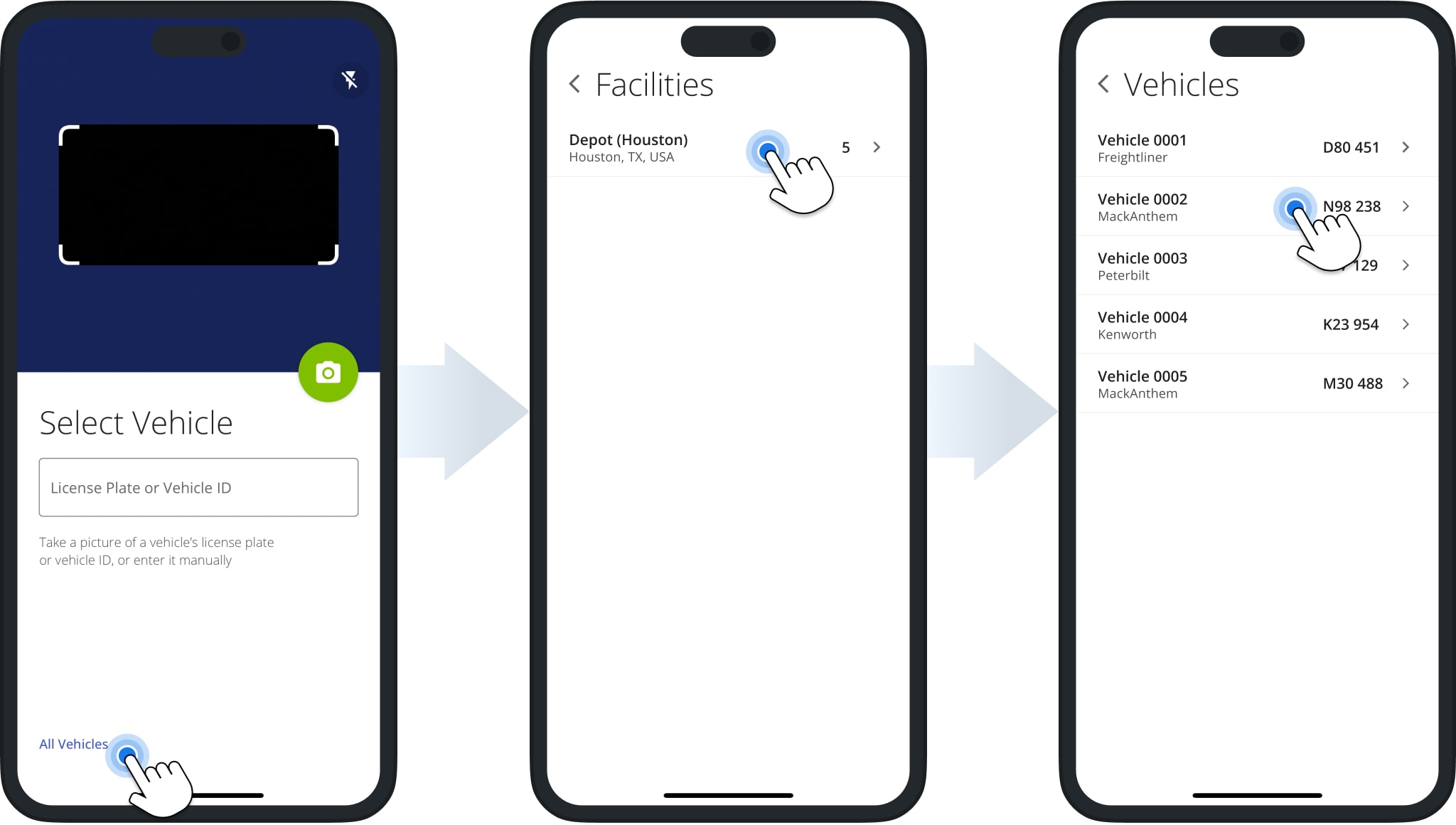
After you’ve assigned a Facility to a User and a Commercial Vehicle, the User can seamlessly confirm Facility Vehicles directly from Route4Trucks by following the steps below:
- Tap “All Vehicles” on the “Select Vehicle” screen.
- Tap to select the corresponding Facility from the list of Facilities assigned to the respective User.
- Tap to select a vehicle from the list of Vehicles with the same assigned Facility.
NOTE: The Route4Trucks app for company truckers shows all vehicles assigned to the same Facilities as the User to help your commercial drivers always find and confirm the details of the correct vehicle.
Visit Route4Me's Marketplace to Check Out More Add-Ons and Modules:
- Route Optimization
Commercial Vehicle & Truck Routing

