
Photo Attachment Export – Bulk Download Images and Photos Attached to Route Destinations
With Route4Me, you can easily export photos that were added to route destinations in bulk.
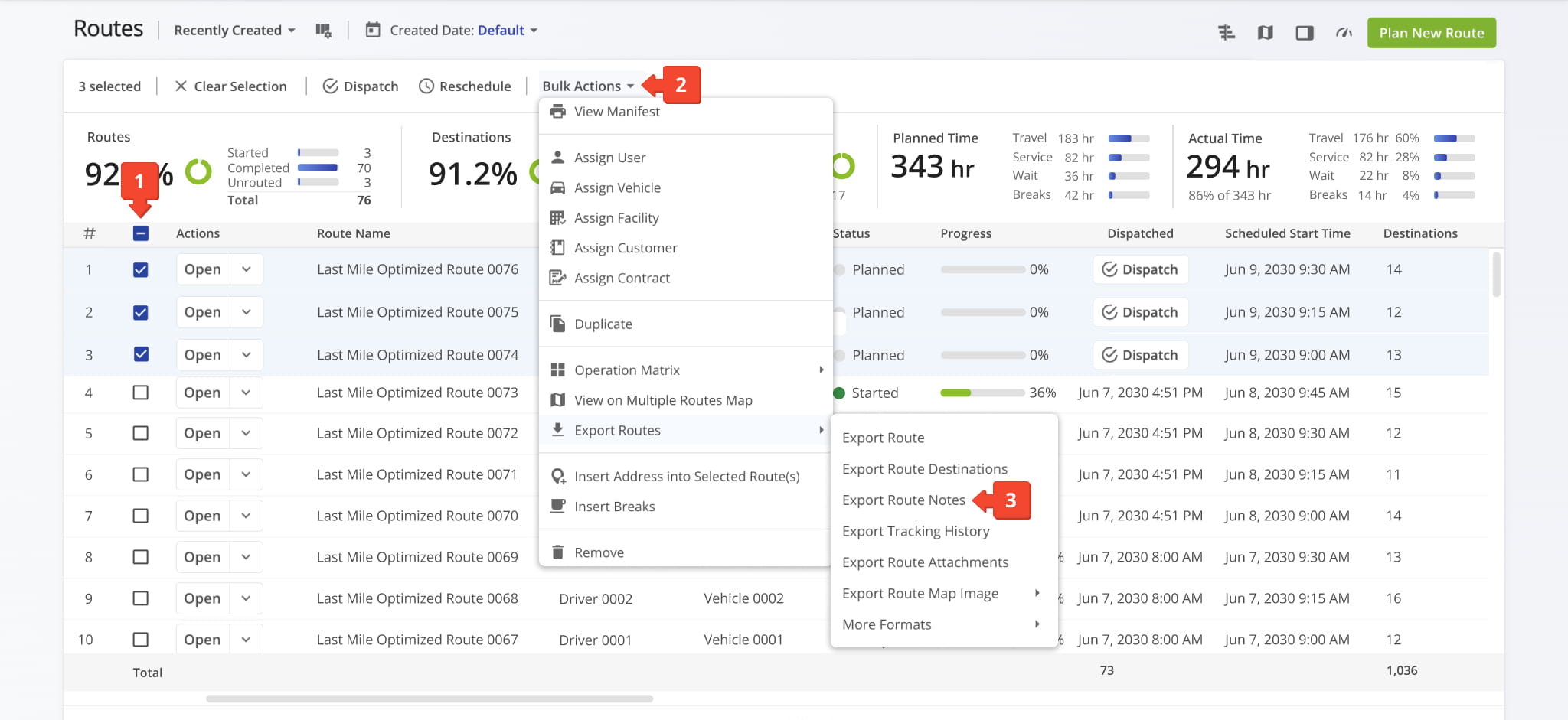
- Open the Routes page and then select the routes you want to export photos from.
- Click Bulk Actions at the top of the screen.
- Select Export Route Notes from the export menu.
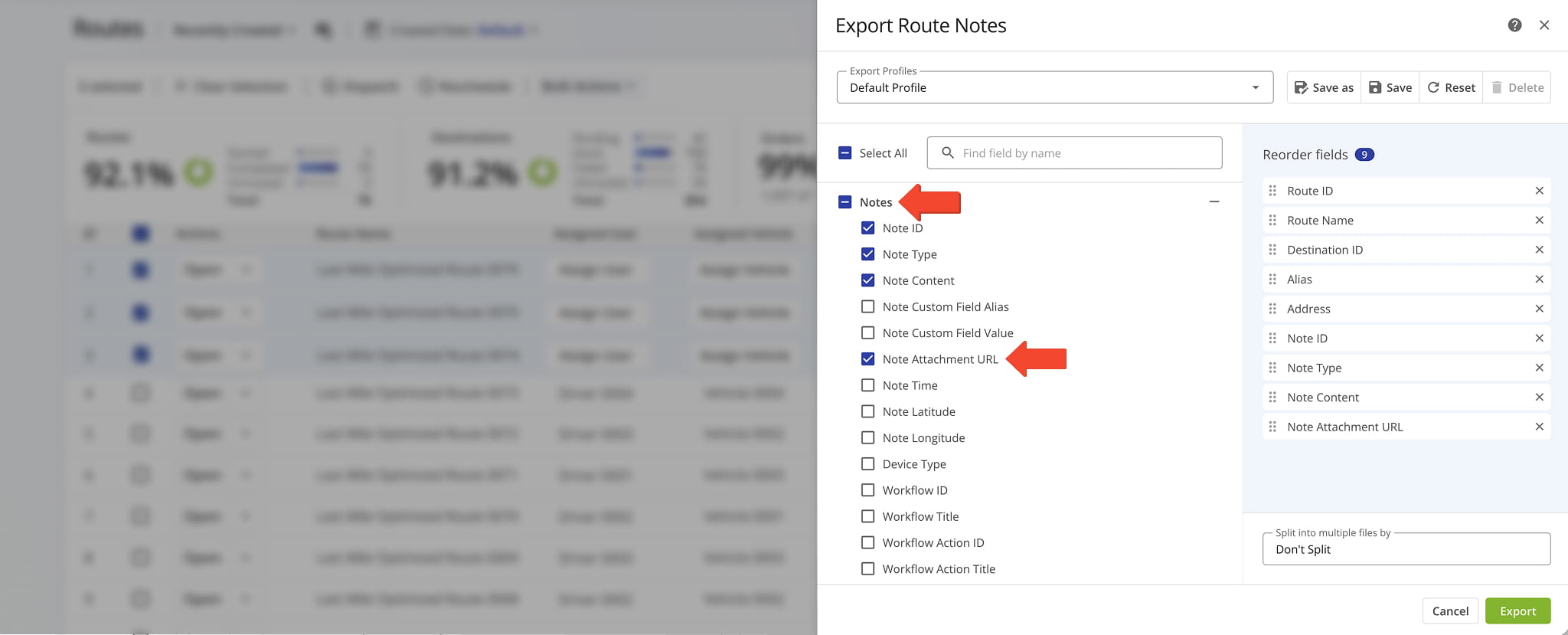
Next, customize your export settings. Make sure to select the “Note Attachment URL” checkbox. This option will include the URLs of all photos and images attached to destinations on the selected routes in the exported file.
Additionally, include other columns that can help you easily identify the destinations associated with each photo. The following columns are recommended (you can include any additional columns as needed): Route ID, Route Name, Destination ID, Destination Alias, Destination Address, Note ID, Note Type, Note Content, Note Attachment URL.
After configuring the export settings, click Export to download the file.
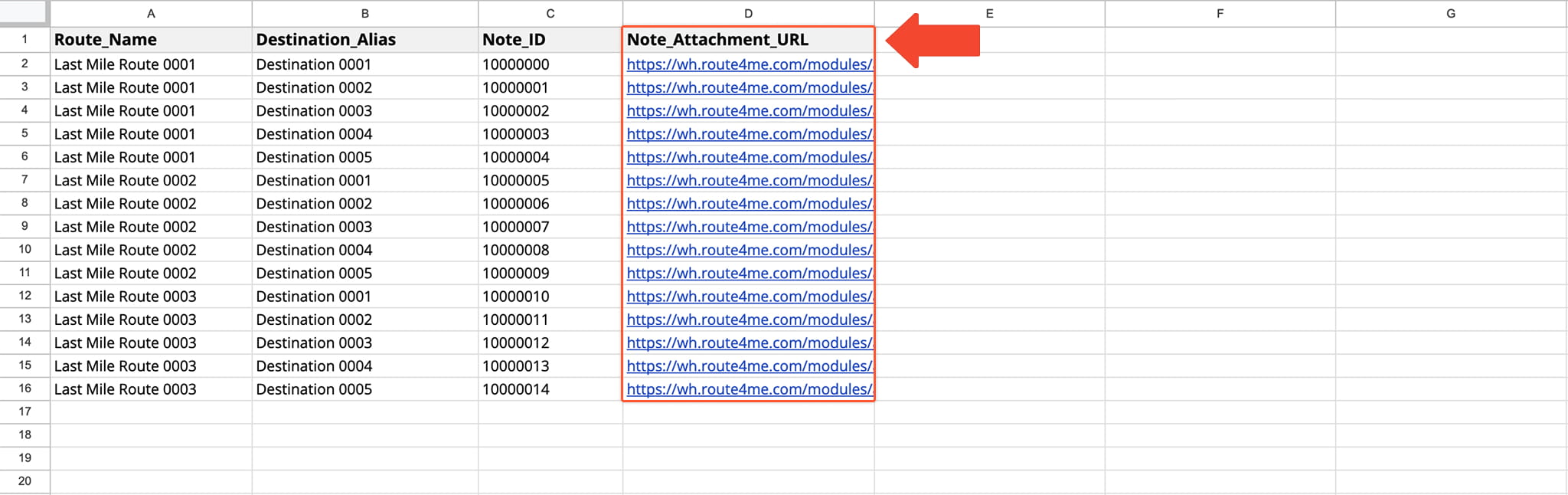
You can then open the downloaded file and locate the “Note_Attachment_URL” column. This column contains links to all photos and images attached to destinations on the selected routes.
Click any link in this column to open, view, and download the corresponding image.
Visit Route4Me's Marketplace to Check out Associated Modules:
- Platform
Route Management
- Operations
Ultra High Resolution Route Mapping
About author: Alex Yasko

