
Commercial Navigation For Trucks Compared To Regular Route Navigation
Route4Me’s route navigation app provides seamless continuity through the entire process of starting, navigating, and completing commercial routes. In this guide, you can learn how to open and start routes, use Route4Me’s In-App Voice-Guided Navigation, see the difference between regular and commercial routes, and more.
Table of Contents
Open And Start Commercial Routes On The Driver Mobile App
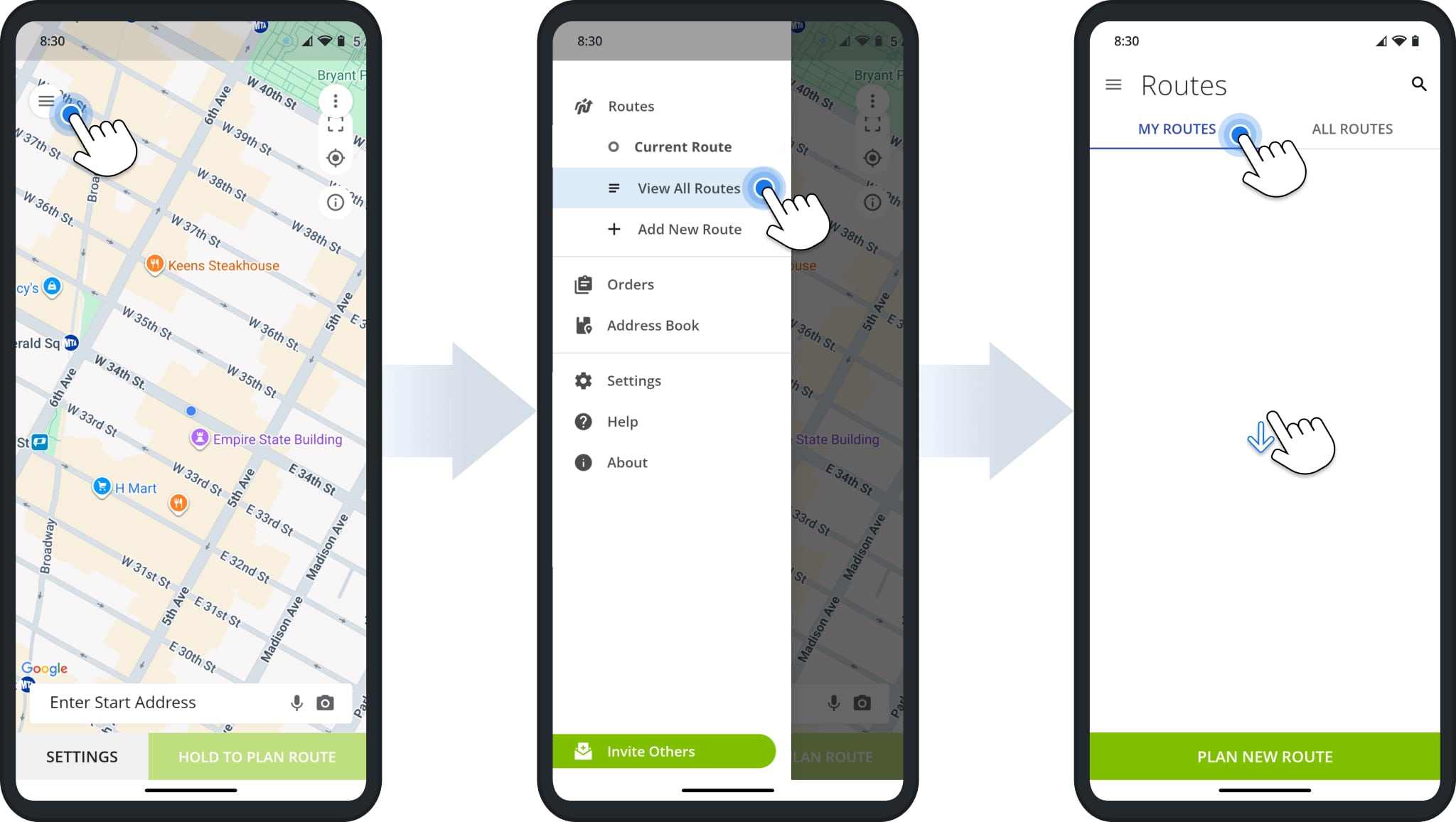
After you sign in to the Route4Me app, tap the Menu Button in the top-right, then tap “Routes” to open the Routes List.
To see dispatched routes assigned to you, tap “My Routes“. Swipe down on the Routes List to refresh and load the most recent data. You can also tap the Search Icon to find routes by name, scheduled month, city, or other attributes.
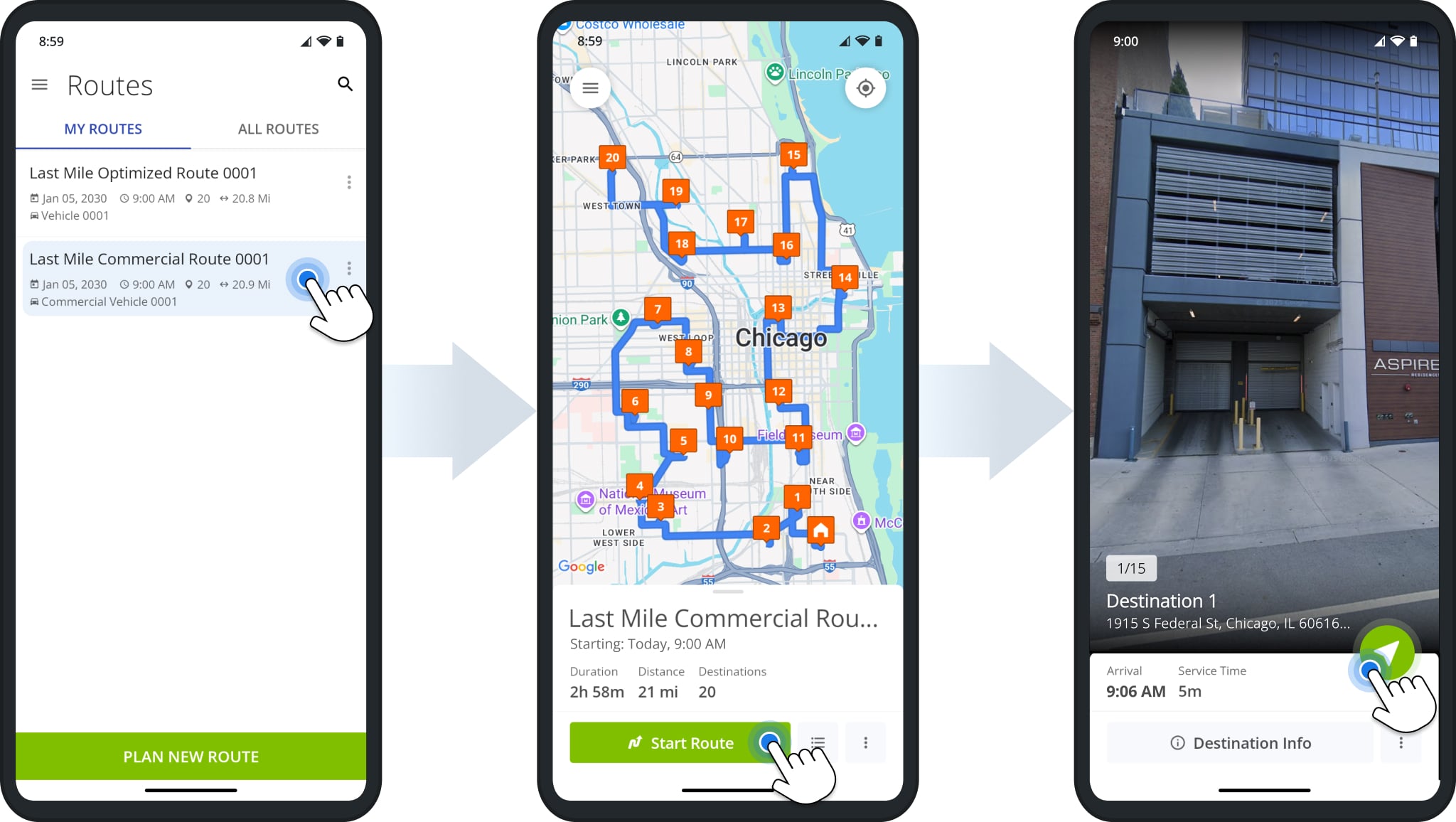
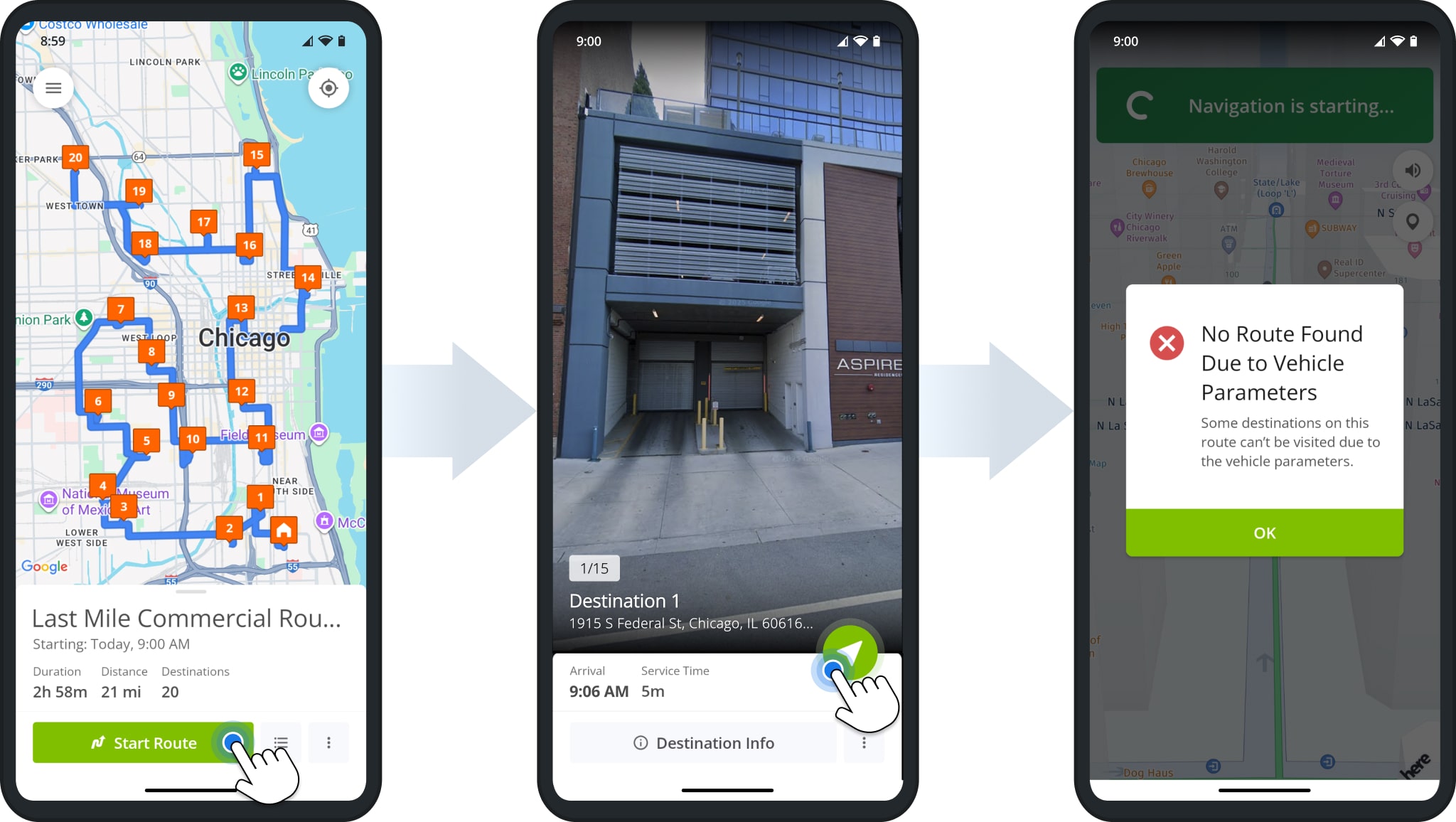
Tap a route to open it, tap “Start Route” to open the first Destination, and tap the Navigate Button to start navigating.
NOTE: Commercial navigation is only possible with Route4Me’s in-app navigation. Third-party app navigation is usually disabled for commercial routes. If you see navigation options, select “Route4Me In-App Navigation“.
Navigate Routes With In-App GPS And Complete Destinations With Proof Of Service
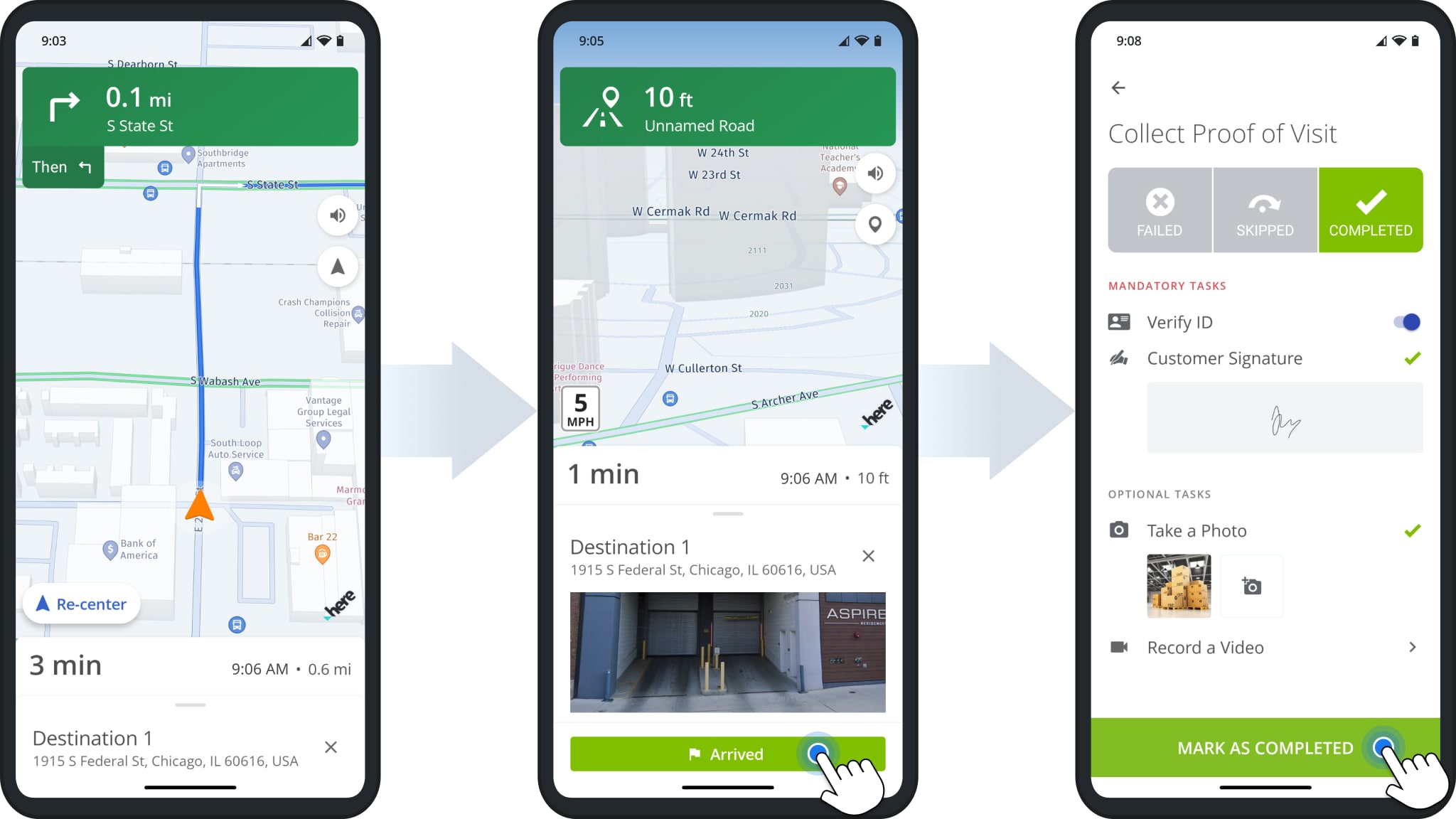
Route4Me’s in-app navigation features voice-guided driving directions for driver safety, dynamic ETAs, live traffic updates, and more. Additionally, you can use pinch gestures to zoom in and out on the navigation map and change the map angle and type.
When you arrive at the Destination address, you’ll see the “Arrived” button. Tap it to confirm your arrival and complete Destination workflows by collecting electronic proof of service such as customer signatures, photos, etc.
Commercial Vehicle Route Navigation Vs. Regular Navigation
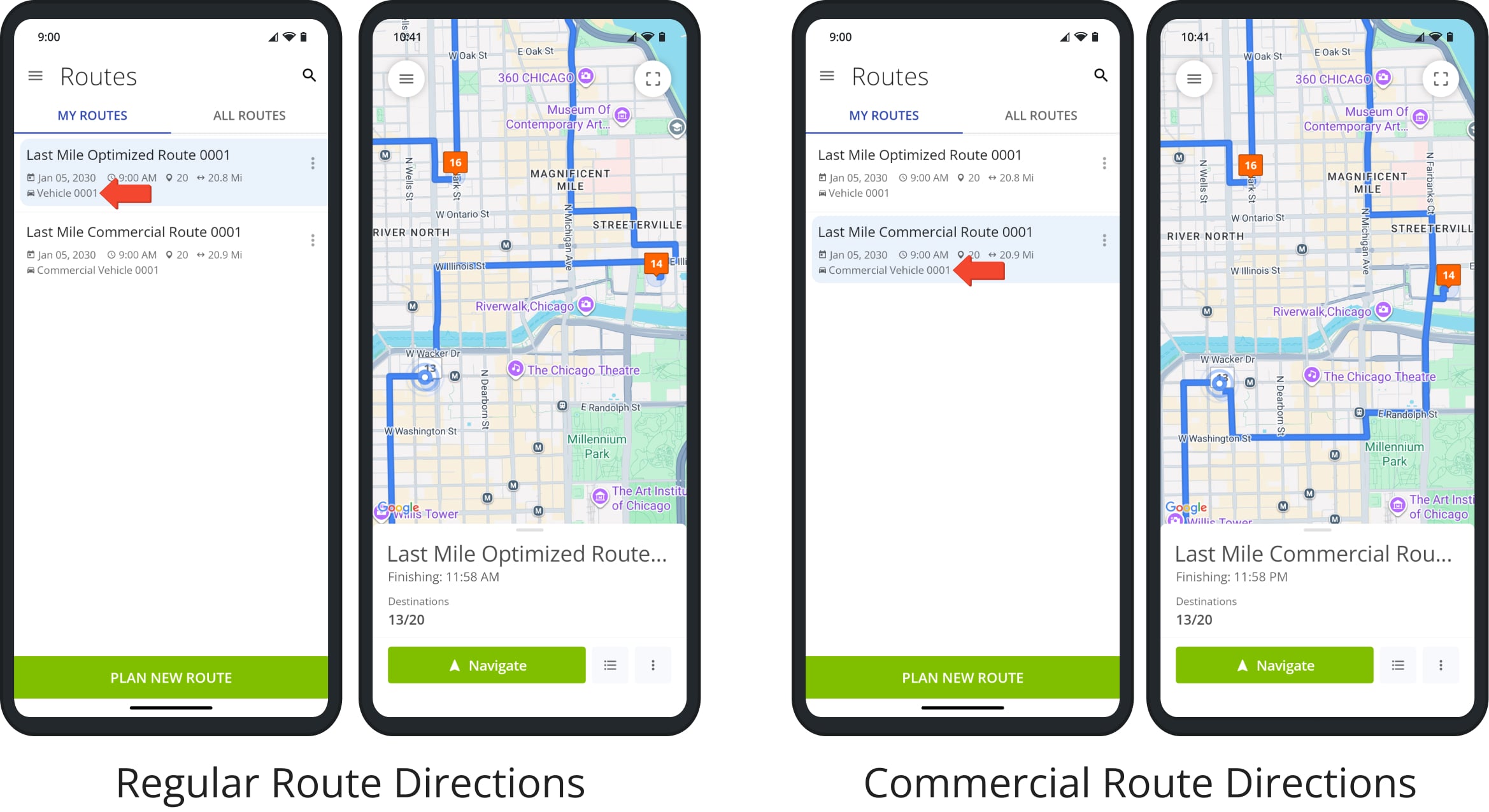
Routes planned for commercial vehicles will avoid unsuitable roads where those vehicles aren’t permitted due to overpasses with height restrictions, bridges with weight restrictions, and other factors.
The example below shows two routes with the same Destinations but different directions based on the Vehicle. To avoid issues and ensure compliance, confirm the correct Vehicle is shown in the app and contact your manager if there are any discrepancies.
Route4Me’s navigation system accounts for real-time changes such as road closure due to construction, weather conditions, etc. If commercial vehicle compliant directions to a Destination aren’t available, you’ll see the following error.
This can also happen in rare cases when a regular route is dispatched to a commercial vehicle. If you encounter any issues with commercial route navigation, contact your direct manager.
Commercial Route Navigation Modes, Settings And Preferences
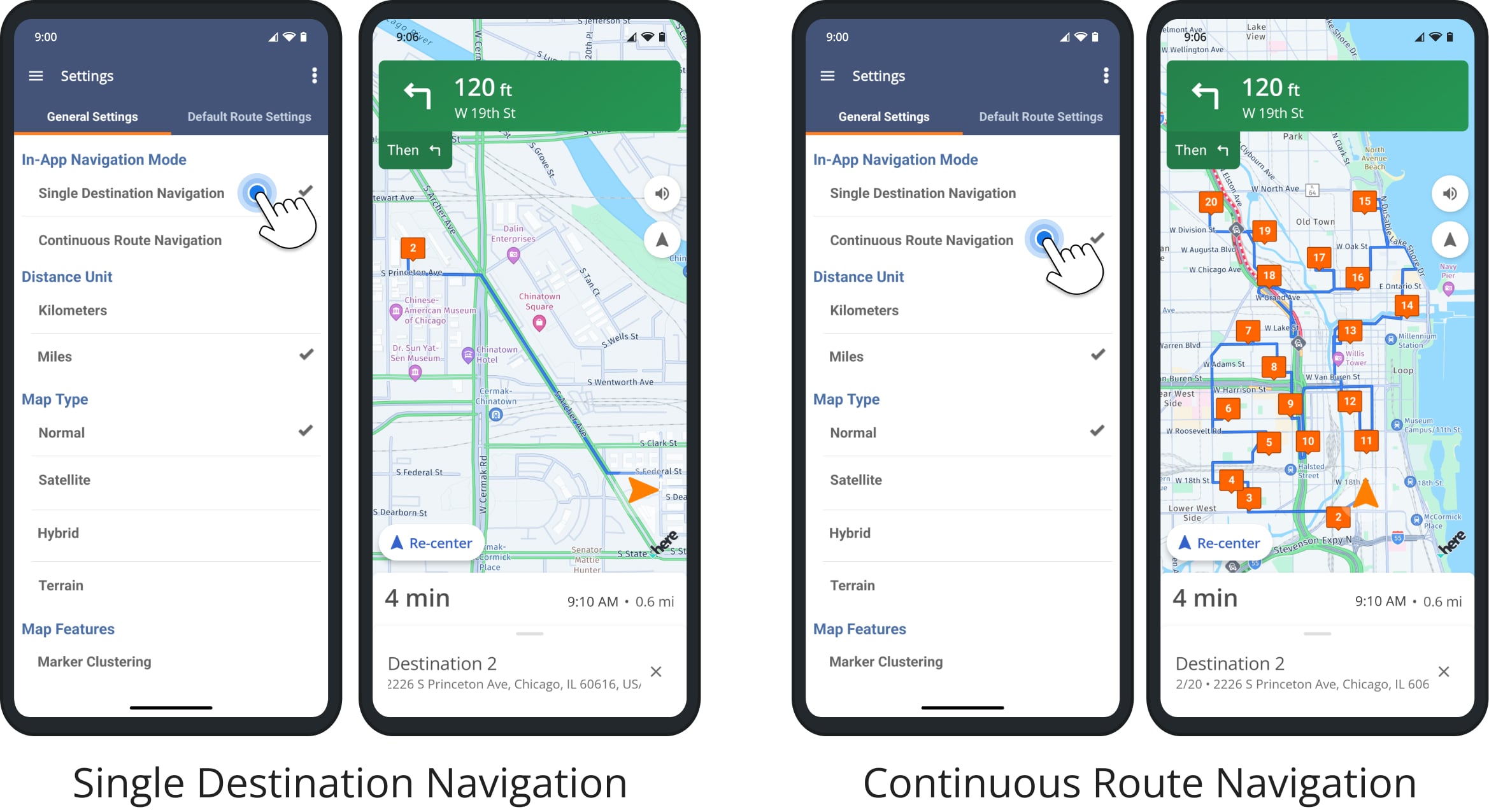
The Route4Me app supports customizable integrated GPS navigation, allowing you to easily navigate commercial routes according to your preferences without switching between apps. Learn more about Navigation Modes and Route4Me App Settings.
Single Destination Navigation is a focused navigation mode helps drivers reach individual Destinations and collect proof of visit.
Continuous Route Navigation is a seamless, full-route navigation mode which provides uninterrupted commercial route directions. After arriving at a Destination, the app will automatically begin navigation to the next Destination on the route.
Visit Route4Me's Marketplace to Check out Associated Modules:
- Operations
Custom Data Add-On
- Operations
Advanced Team Management Add-On
About author: Kristian Andreev

