
Route4Trucks – Start And Navigate Commercial Routes With Truck Driver App
Route4Trucks is the best GPS truck navigation and multi-destination truck route planner for truckers, commercial drivers, and company drivers. Built-in GPS navigation with real-time voice-guided truck directions, speed limit alerts, live traffic and road conditions, and more enable truck drivers to complete commercial truck routes more safely and in less time. In this guide, you can learn how to start, navigate, and complete commercial truck routes planned with the Route4Trucks app.
Navigate Multi-Stop Truck Routes With Voice-Guided GPS
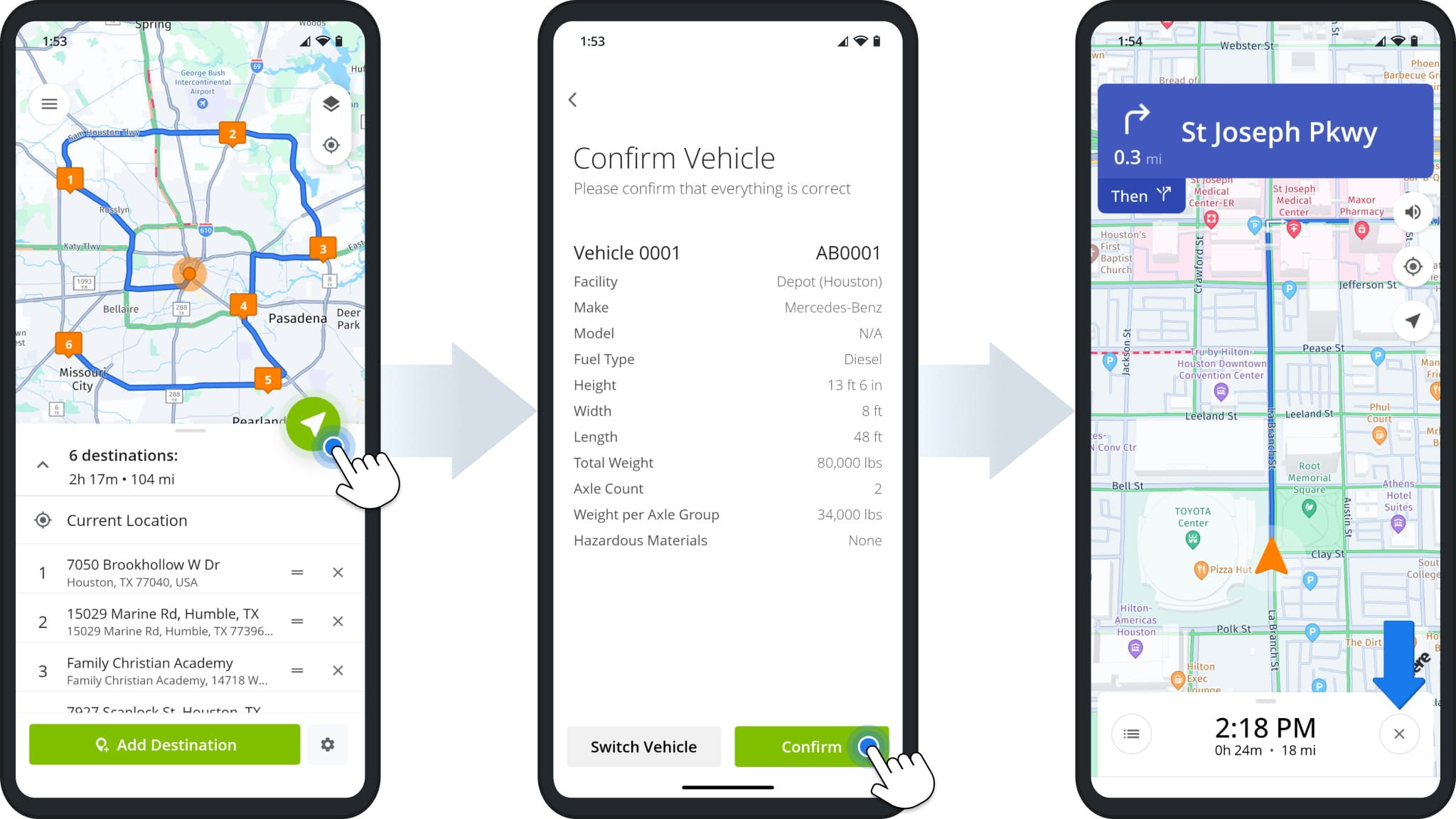
To start GPS navigation after you plan truck routes, tap the green Start Button. Next, tap “Confirm” to approve the selected vehicle or “Switch Vehicle” to select a different truck.
Route4Trucks will generate the best truck driving directions based on the commercial vehicle parameters of the selected truck. After that, you can proceed to navigate using the in-app commercial vehicle GPS navigation.
Additionally, you can tap and hold the X Icon to exit navigation and add, remove, or resequence destinations after you’ve started navigating a route. Accordingly, Route4Trucks will automatically update truck navigation directions based on the adjustments.
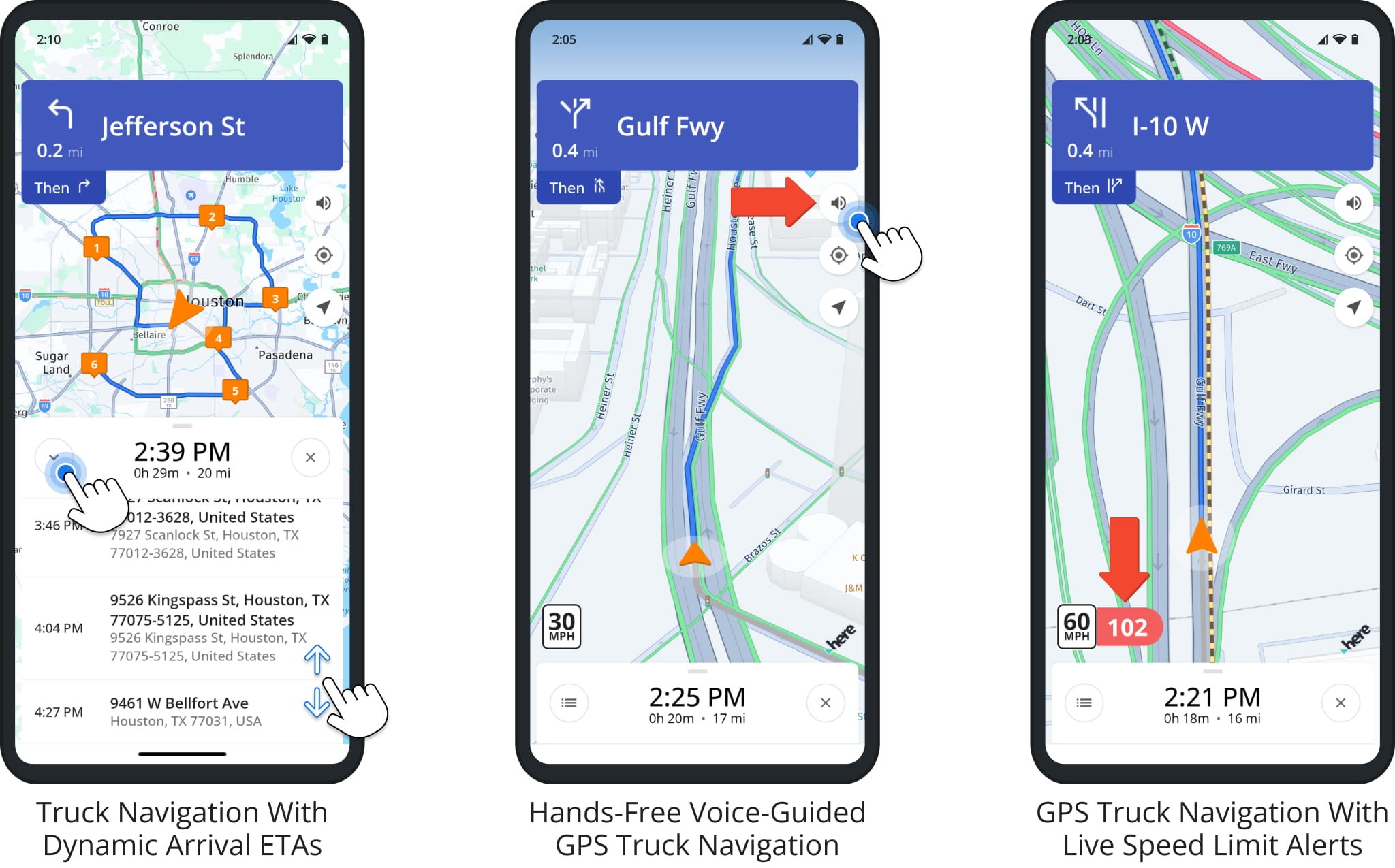
The Estimated Time of Arrival (ETA) and Remaining Distance to the next destination are displayed at the bottom of the navigation screen. To check the ETA and distance to other destinations, tap the Arrow Button in the bottom-left. The app dynamically updates ETAs based on speed, traffic, route progress, etc.
To enable or disable Voice-Guided Truck GPS Navigation, tap the Speaker Icon in the top-right corner of the map. When enabled, the app will tell you when and where to make the next turn to reach your destination.
You can check the speed limit on the road you are currently driving in the bottom-left corner of the map. Moreover, when you exceed the allowed truck speed limit, the app will alert you with a sound and show your current driving speed in red.
Finish Multi-Address Commercial Routes On Best Trucking App
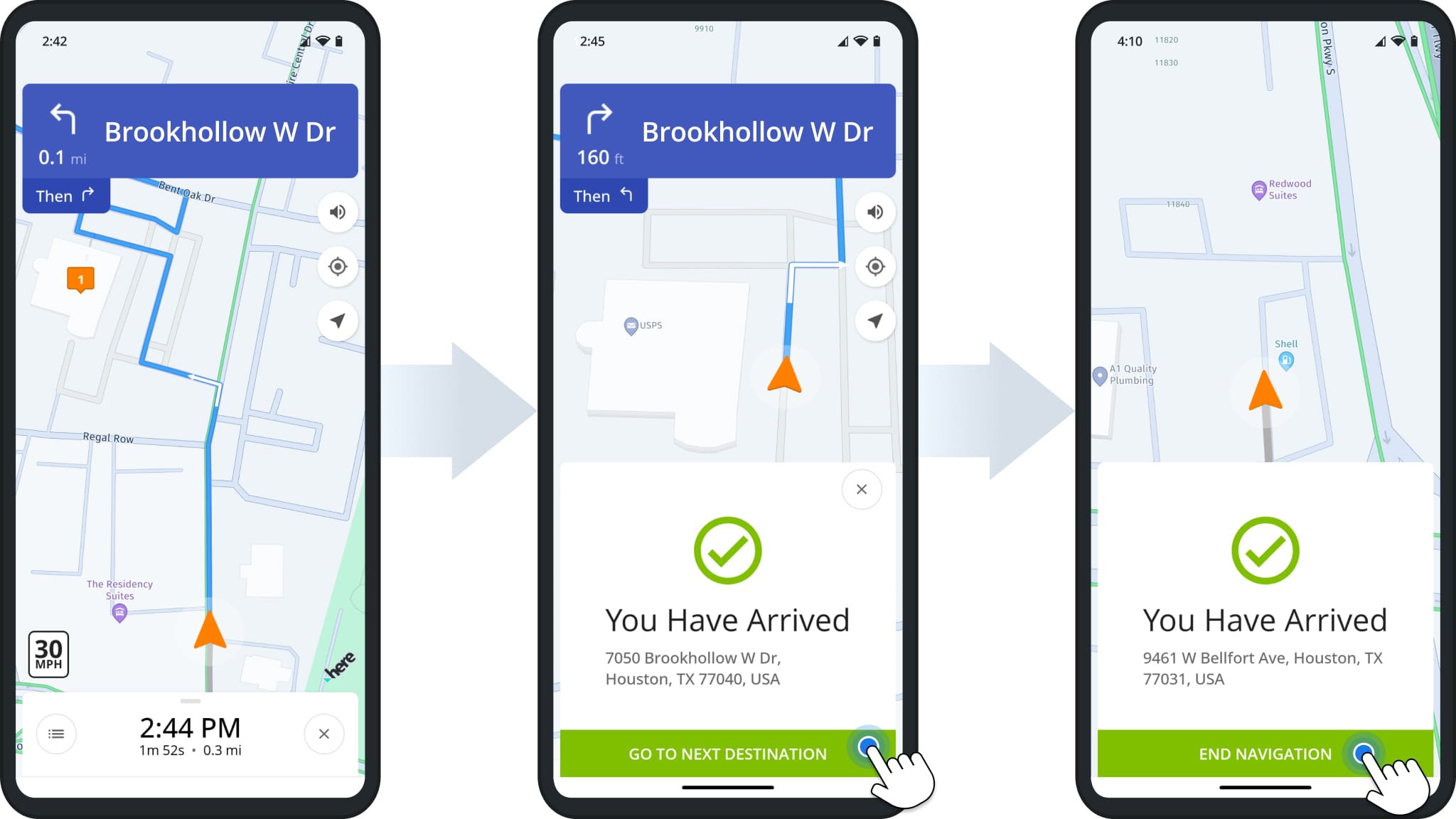
Route4Trucks will automatically notify you when arriving at route destination as seen in the image below. Simply tap “Go To Next Destination” to start the navigation to the next destination on your trucking route.
When you arrive at the final destination, the app will notify you about reaching the final route address. Tap “End Navigation” to complete the route and close route navigation.
Visit Route4Me's Marketplace to Check Out More Add-Ons and Modules:
- Route Optimization
Commercial Vehicle & Truck Routing

