
Route4Trucks App Settings – Commercial Vehicle Management And Road Restrictions
Route4Trucks is the best trucker app for company drivers that can also be used by independent truckers to seamlessly plan and navigate trucking routes. In this guide, you’ll learn how to adjust app preferences for distance units, live traffic overlays, voice-guided GPS truck navigation. You can also use truck road restriction and avoidance settings to plan and navigate truck routes to avoid tolls, unmarked roads, highways, ferries, tunnels, etc. Keep reading to learn more.
Table of Contents
Route4Trucks Preferences – Distance Units, Traffic Maps, Voice-Guided GPS Language
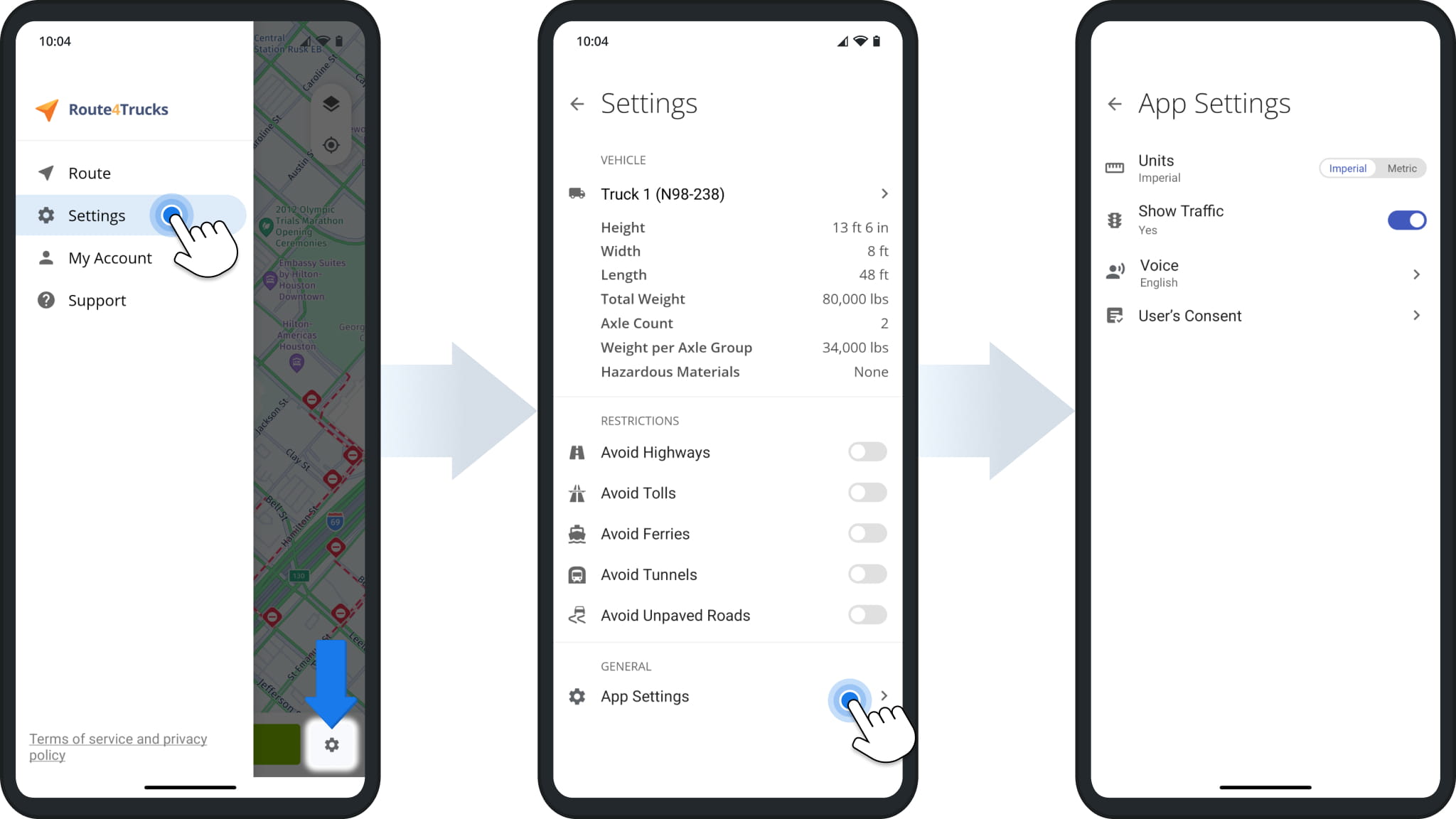
To adjust Route4Trucks app settings, tap the Menu Icon in the top left corner of the screen and then select “Settings“. Next, go to “App Settings“, and then adjust app units, voice-guided navigation language, and map traffic. Further, you can learn how to add and manage your vehicles, enable and disable road restrictions, and change map view modes.
| Settings | Description |
|---|---|
| Units | Select Imperial Units (miles, pounds, and feet) or Metric Units (kilometers, kilograms, and meters). For example, distance units are used on the route planning and route navigation screens. Accordingly, weight, height, and other units are used in commercial vehicle profiles. |
| Show Traffic | When enabled, the app displays roads with heavy traffic in red and roads with medium traffic in yellow. Accordingly, the traffic can be displayed on the map of the route planning and route navigation screens. Equally important, Route4Trucks automatically updates the commercial GPS traffic in real-time. |
| Voice | Choose and download the preferred languages and voice types for your GPS truck voice-guided navigation. |
| User’s Consent | Read a description of required permission settings and for what the app uses them. |
Route4Trucks Enterprise Vehicle Selection Settings And License Plate Scanner
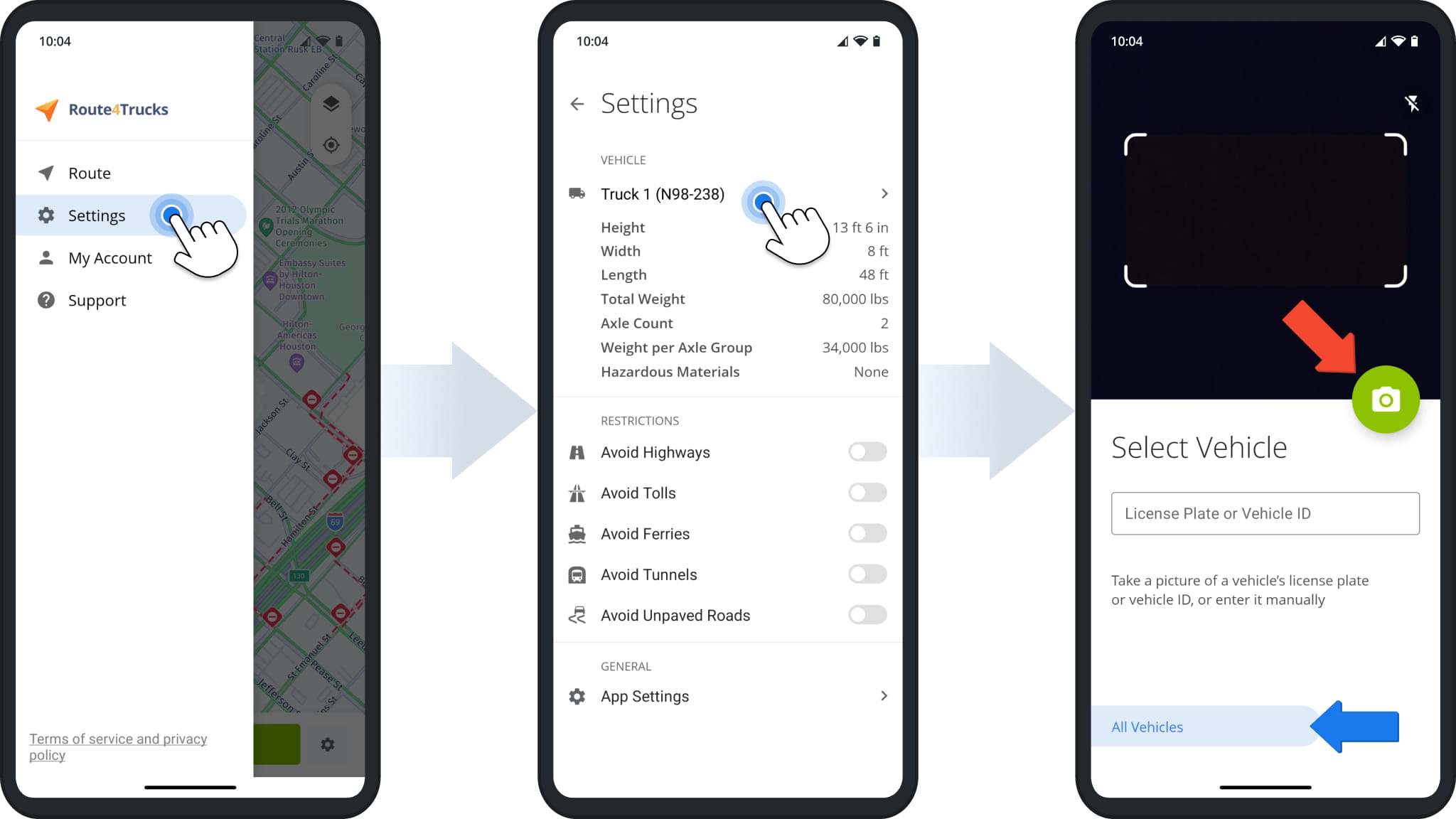
The Route4Trucks App Settings enable enterprise truck drivers to easily change the currently selected commercial vehicle. Simply tap the vehicle in the settings to open the in-app license plate scanner.
From the scanner, you can either point the camera at a truck license plate and tap the Camera Button to scan it, use the “License Plate or Vehicle ID” field to manually input a license plate number, or tap “All Vehicles” to confirm assigned trucks and company facility commercial vehicles.
Road Restrictions – Enable Truck Route Road Avoidance
To enable road restrictions from the route planning screen, tap the Settings Icon in the bottom-right corner of the map.
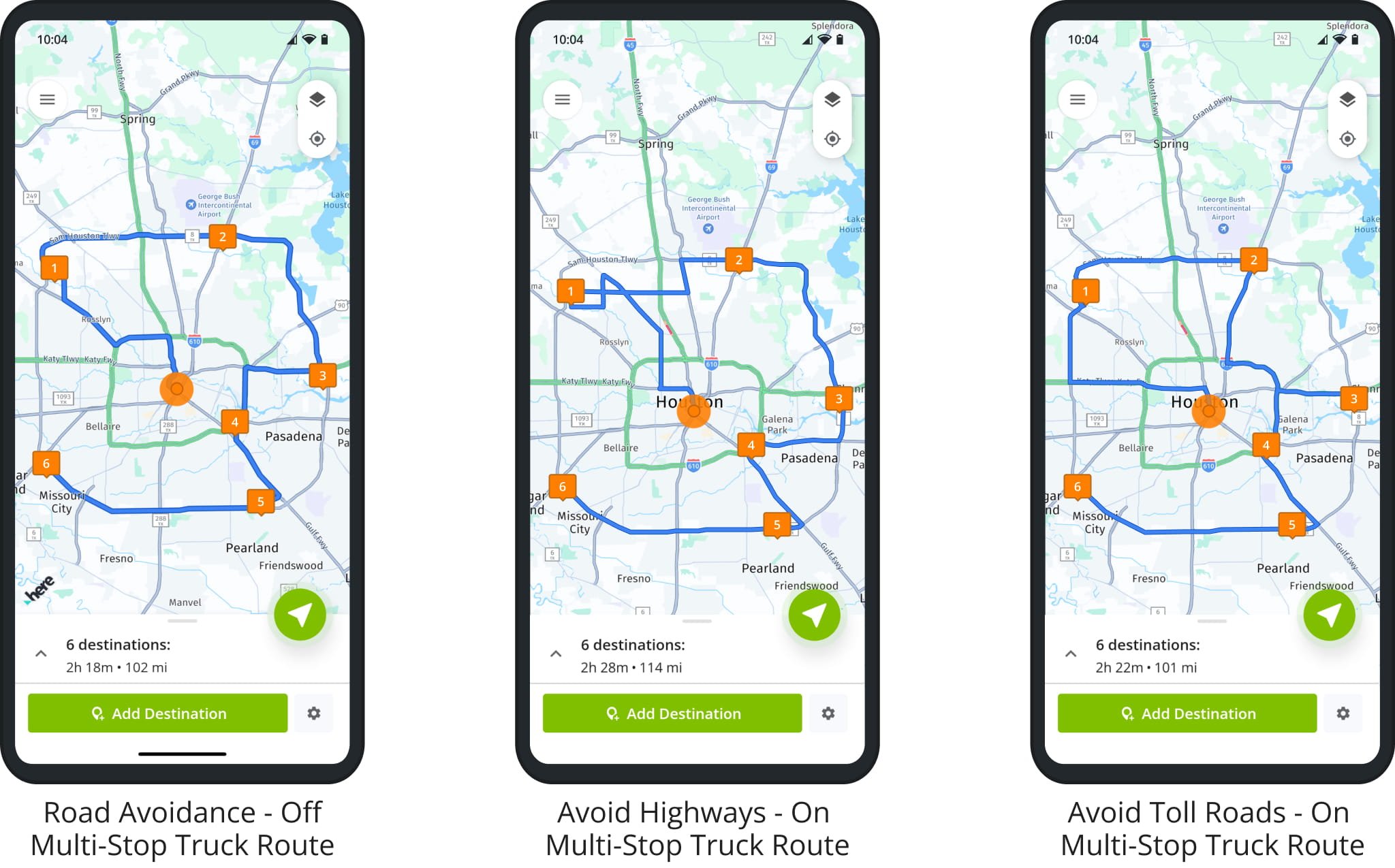
Next, in the “Restrictions” section, you can enable and disable the following truck route road restrictions: Avoid Highways, Avoid Tolls, Avoid Ferries, Avoid Tunnels, and Avoid Unpaved Roads.
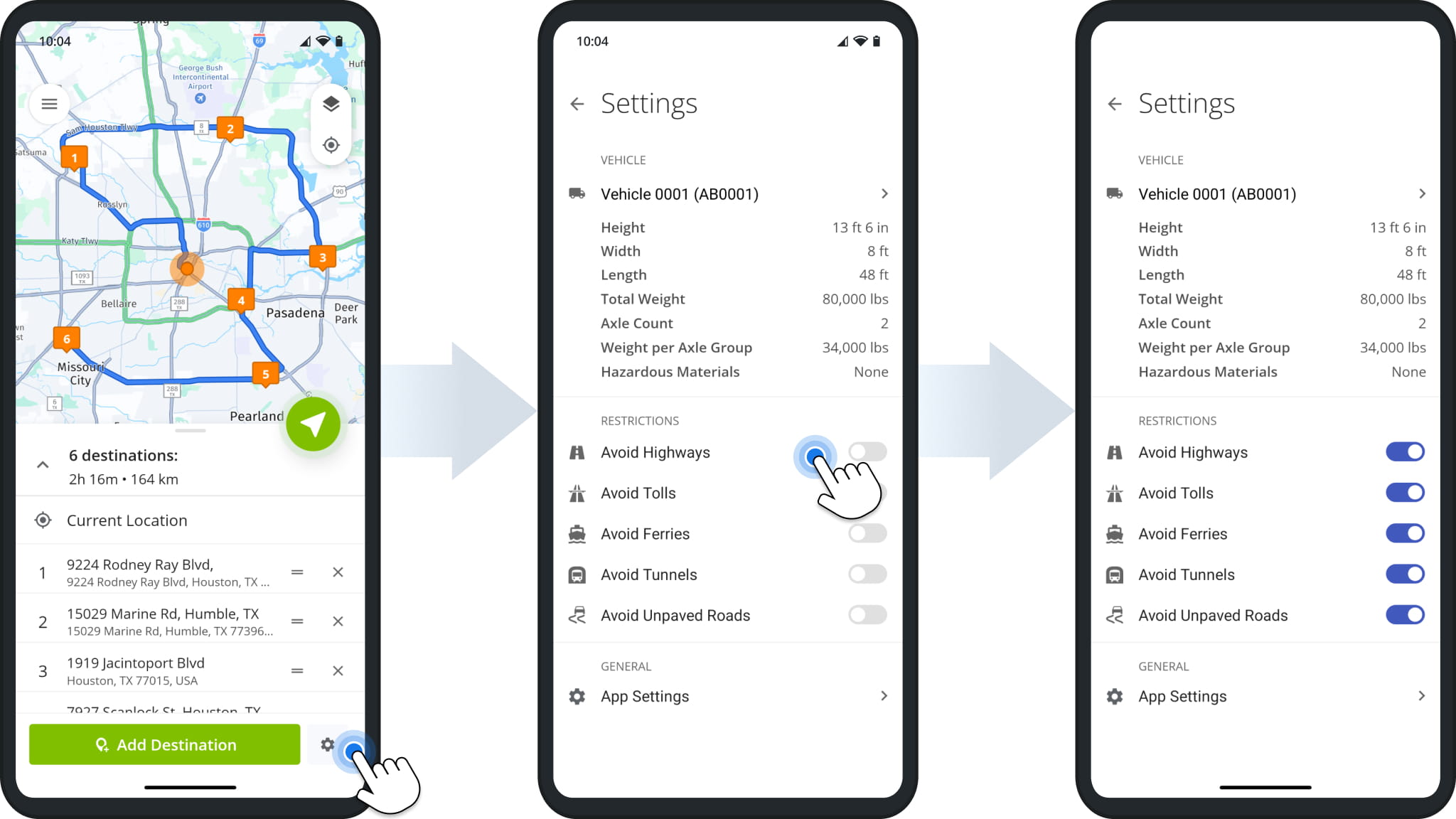
The Route4Trucks commercial vehicle app will automatically generate truck route directions that avoid or include highways, toll roads, ferries over water crossways, tunnels, unpaved roads, etc. Accordingly, your truck route and trucker GPS navigation directions can vary depending on the enabled and disabled road avoidance settings.
Route4Trucks Map Modes – Satellite And Night Mode Truck Navigation Maps
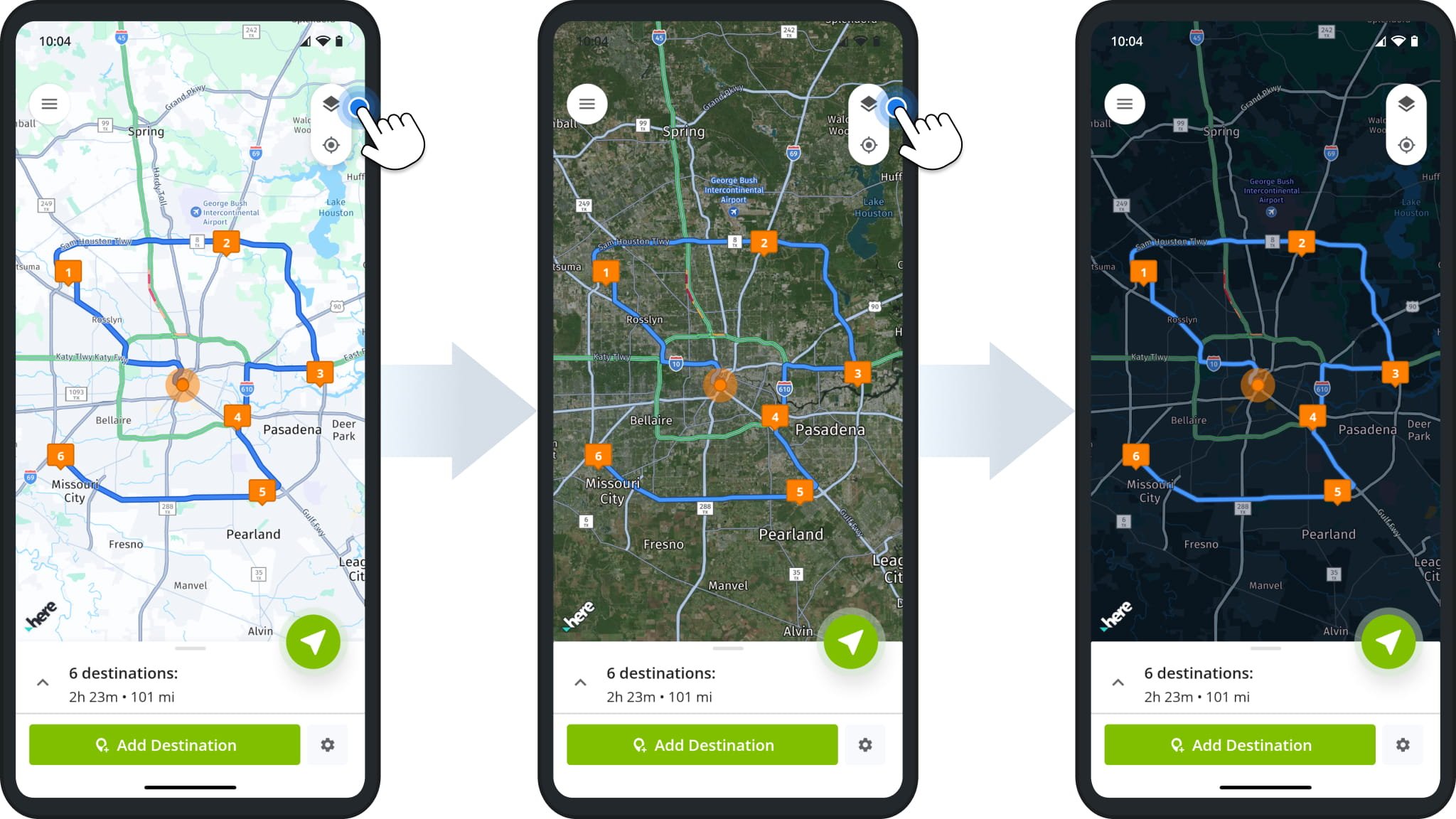
For your convenience and driver safety, you can change your truck GPS map mode on the route planner and navigation screens. To do so, tap the Layers Icon in the top right corner of the map when planning a route and choose the preferred view mode.
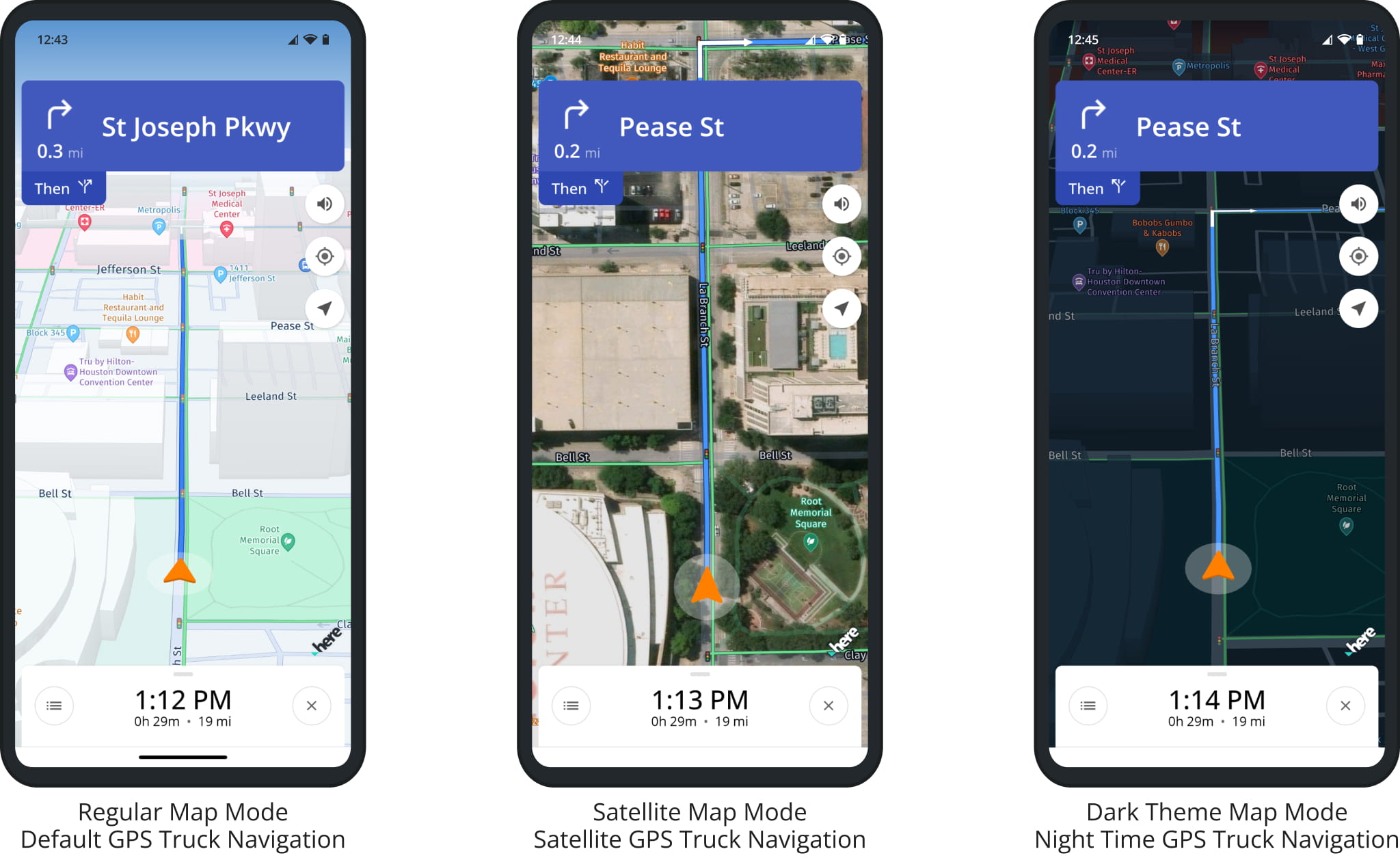
For example, you can use the commercial satellite truck maps view mode to view satellite imagery of real 3D buildings, terrain, or landscapes for more detailed route planning and navigation. Accordingly, you can use the navigation dark theme or truck maps night mode for safer driving at night.
Depending on the map view mode on the route planning screen, the same map view mode is applied to the GPS truck maps on the navigation screen. Accordingly, you can use regular, satellite, and dark theme truck maps to navigate your commercial truck GPS routes. Furthermore, you can use gestures to adjust the map zoom and tilt angle for a more detailed map view.
Visit Route4Me's Marketplace to Check Out More Add-Ons and Modules:
- Route Optimization
Commercial Vehicle & Truck Routing

