
Route4Trucks License Plate Scanner – Confirm Truck Details With In-App Truck Plate Scanner
Medium and large businesses can have dozens of vehicles stationed at a single facility, and making sure drivers can easily find and confirm the correct truck is essential for smooth routing operations. The Route4Trucks commercial driver app License Plate Scanner enables truckers to view detailed vehicle information seamlessly by simply snapping a picture of a license plate. Furthermore, drivers and field members can manually enter a license plate number and instantly find and open the vehicle profiles corresponding to their facility or vehicle access permissions. Keep reading to learn more.
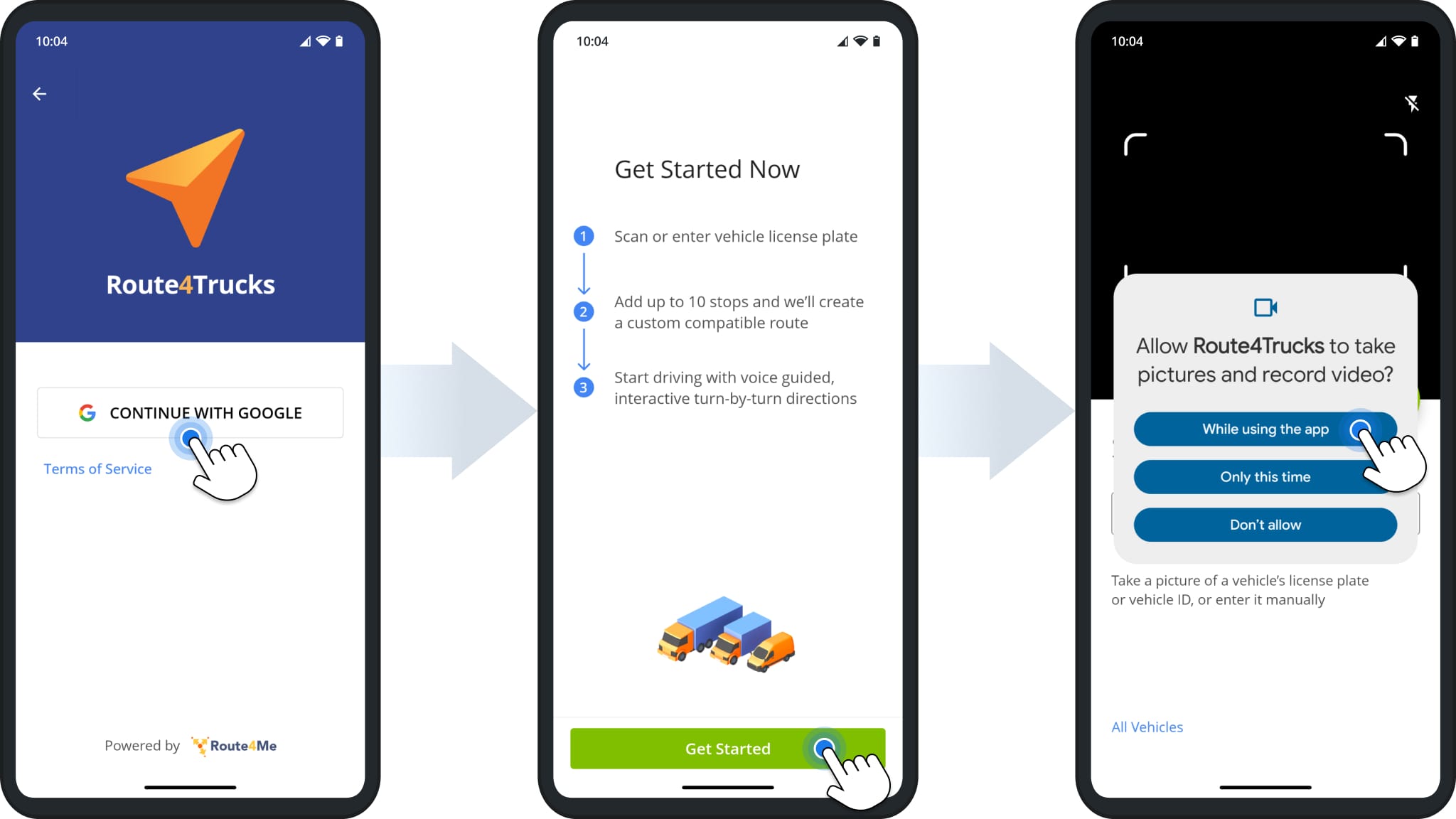
To use the License Plate Scanner, sign in to Route4Trucks with your company email address. The first time you do this, you’ll see the “Get Started Now” screen with basic instructions on how the app works. Tap “Get Started” to proceed.
The app will then prompt you to enable camera permissions. Route4Trucks uses the camera for the in-app license plate scanner. Tap “While using the app” to allow Route4Trucks to use your device’s camera.
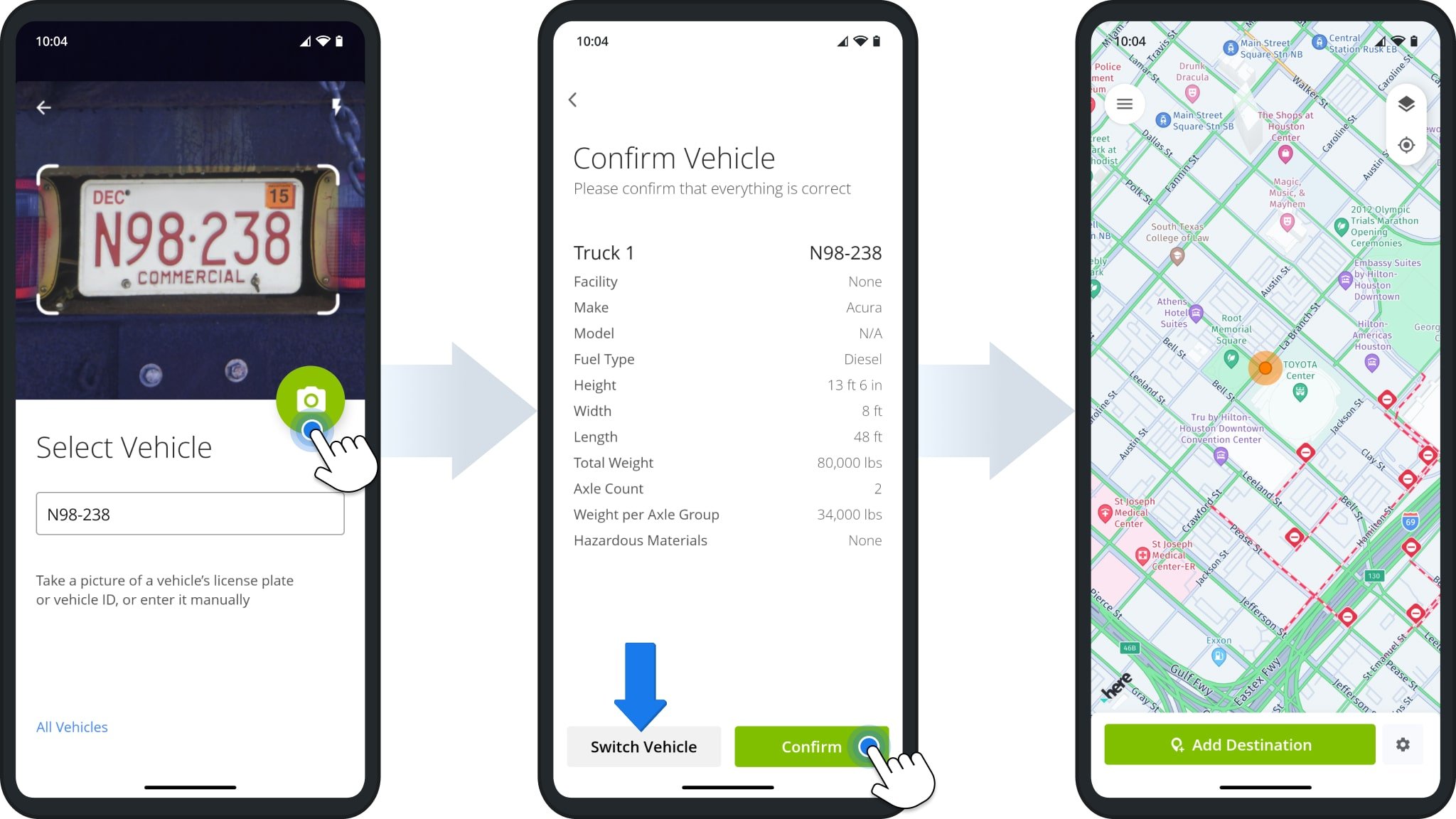
After the first time you open the app, Route4Trucks will automatically open the License Plate Scanner after signing in if there’s no selected vehicle. Simply point the camera at the truck’s license plate and tap the Camera Button to take a picture. Route4Trucks will automatically recognize the license plate and open the associated vehicle profile. If the vehicle details are correct, tap “Confirm” to proceed. You can also tap “Switch Vehicle” to scan or select a different truck.
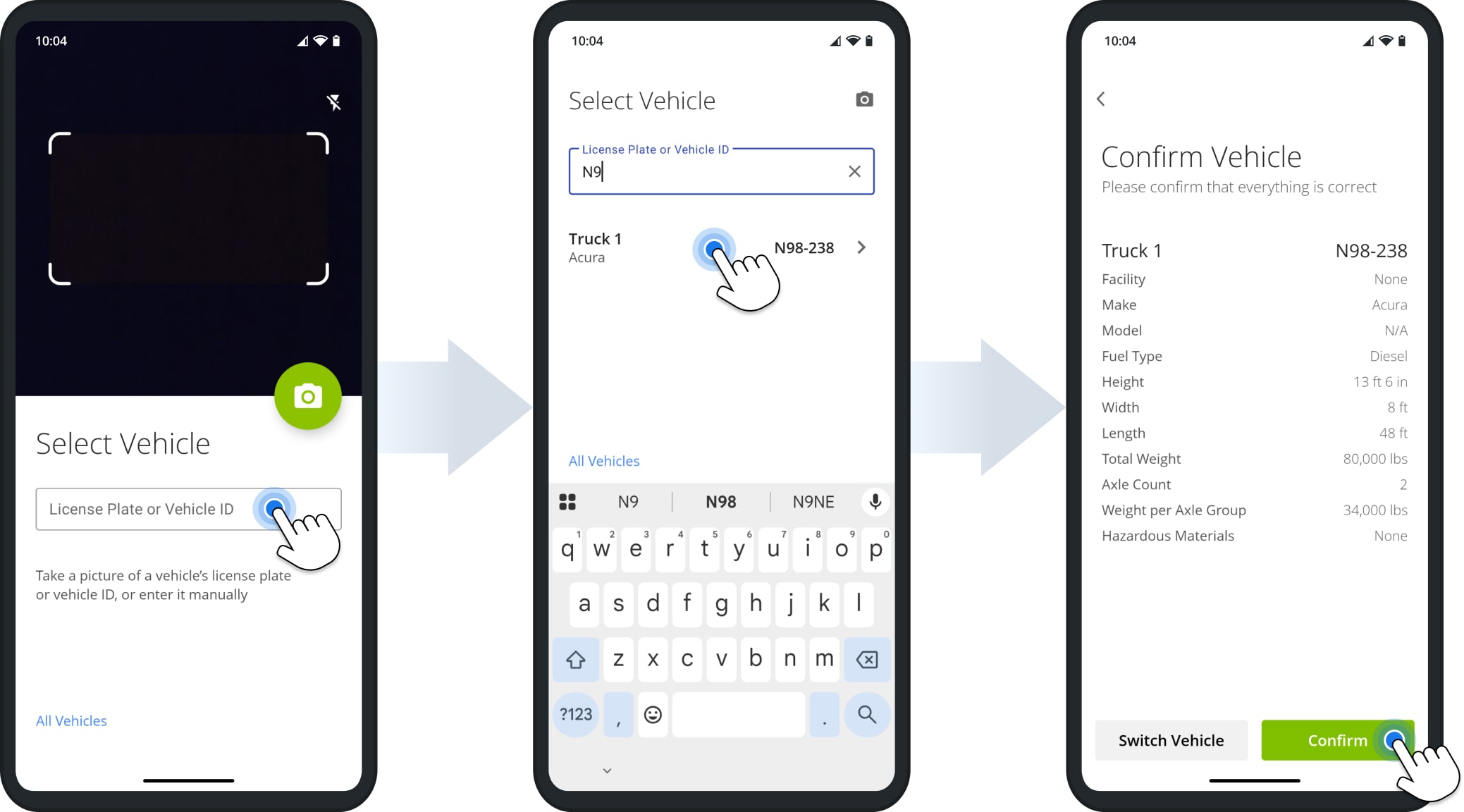
Additionally, the Route4Trucks License Plate Scanner enables truckers to confirm commercial vehicle details by manually entering a license plate number. To do so, simply sign in to Route4Trucks with your Google account, tap the “License Plate or Vehicle ID” field, and input the license plate number. Route4Trucks will automatically recognize the license plate and open the associated vehicle profile. If the vehicle details are correct, tap the “Confirm” button.
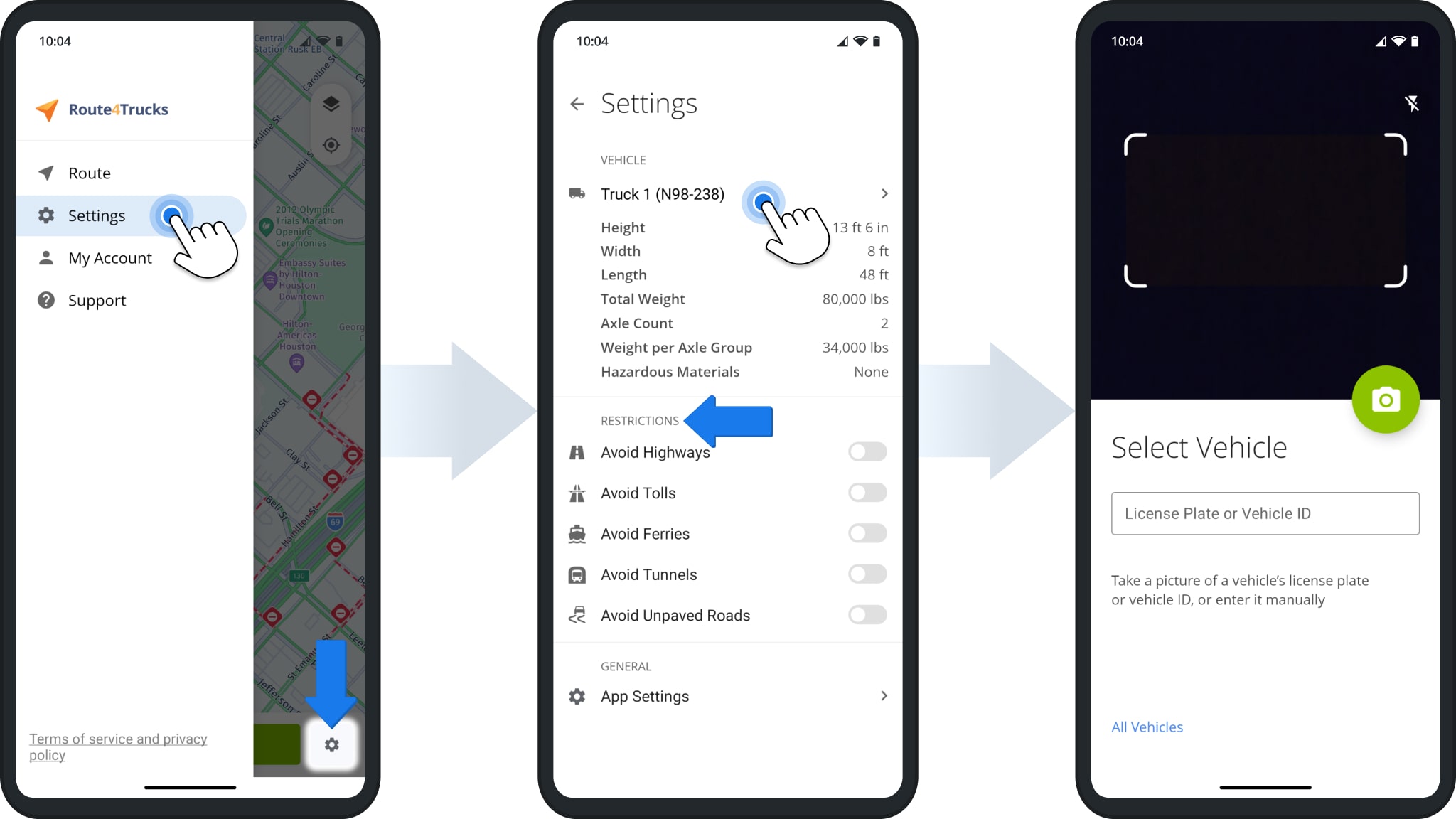
If you need to change the currently selected vehicle, open the menu and tap “Settings” or tap the Gear Icon in the bottom-right. The active vehicle is always at the top of the “Settings” screen. Tap the vehicle to open the License Plate Scanner.
Under the active vehicle, you’ll see the “Restrictions” settings. You can toggle different road and travel avoidance options when planning commercial truck routes.
Visit Route4Me's Marketplace to Check Out More Add-Ons and Modules:
- Route Optimization
Commercial Vehicle & Truck Routing

