
Install & Sign In – iOS Mobile App For Company Drivers
Enterprise fleet drivers, field service technicians, and other mobile team members can quickly set up the Route4Me Driver Mobile App on iOS to access its full routing capabilities. After accepting an invitation, creating an account, and installing the app, users can sign in and start managing dispatched routes from a mobile device. Learn more about the set up process in this guide.
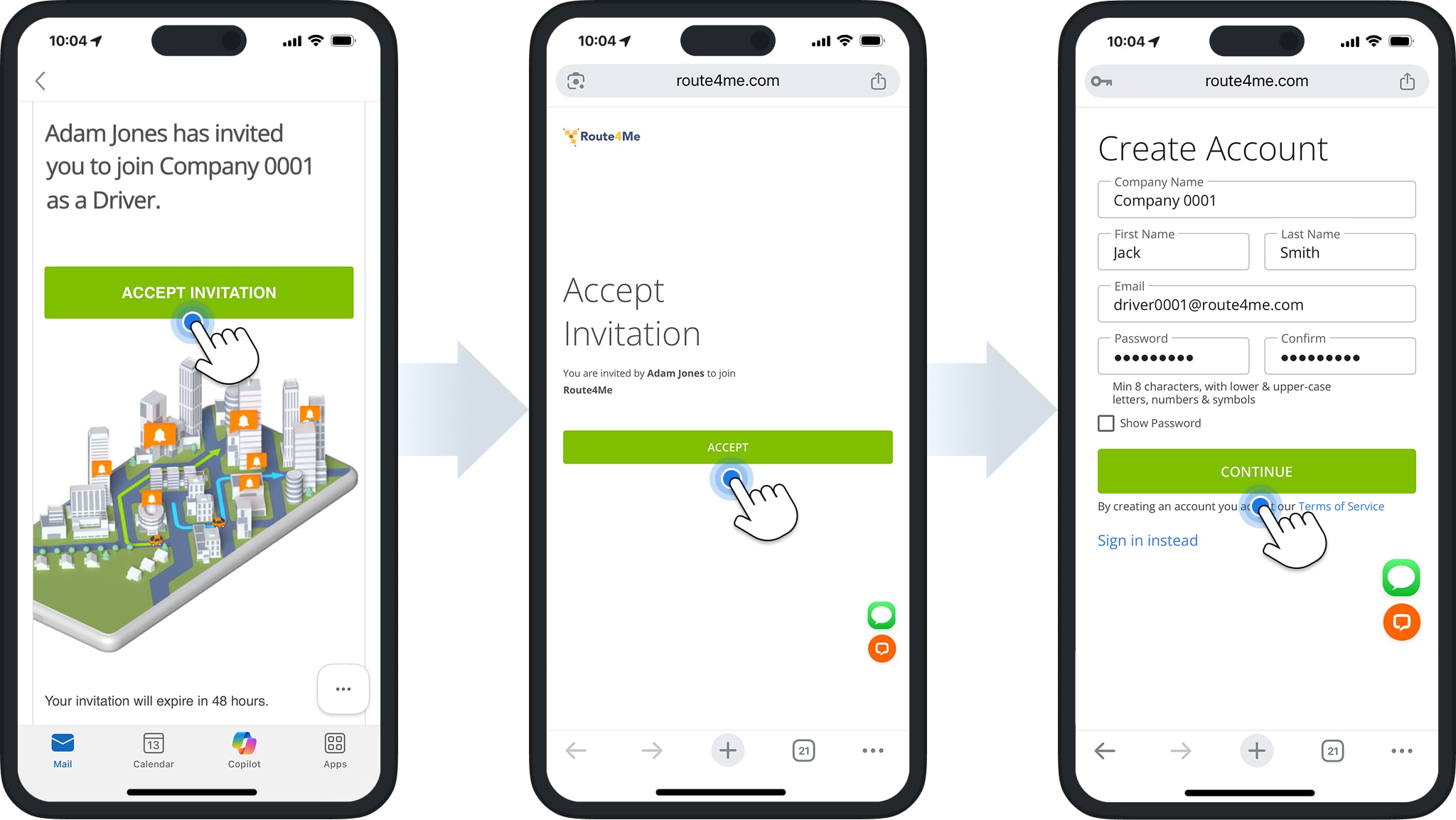
You can start using the Route4Me Driver Mobile App by accepting an invitation from your direct supervisor or manager. This invitation is time sensitive, automatically set to expire after 24 hours.
After accepting the invitation, you will be prompted to enter the sign in email address and password your direct manager or supervisor has created for you.
NOTE: Managers should promptly share these credentials with team members to avoid delays. For any issues with account setup, installation, or sign in, team members should contact their manager or Route4Me Support.
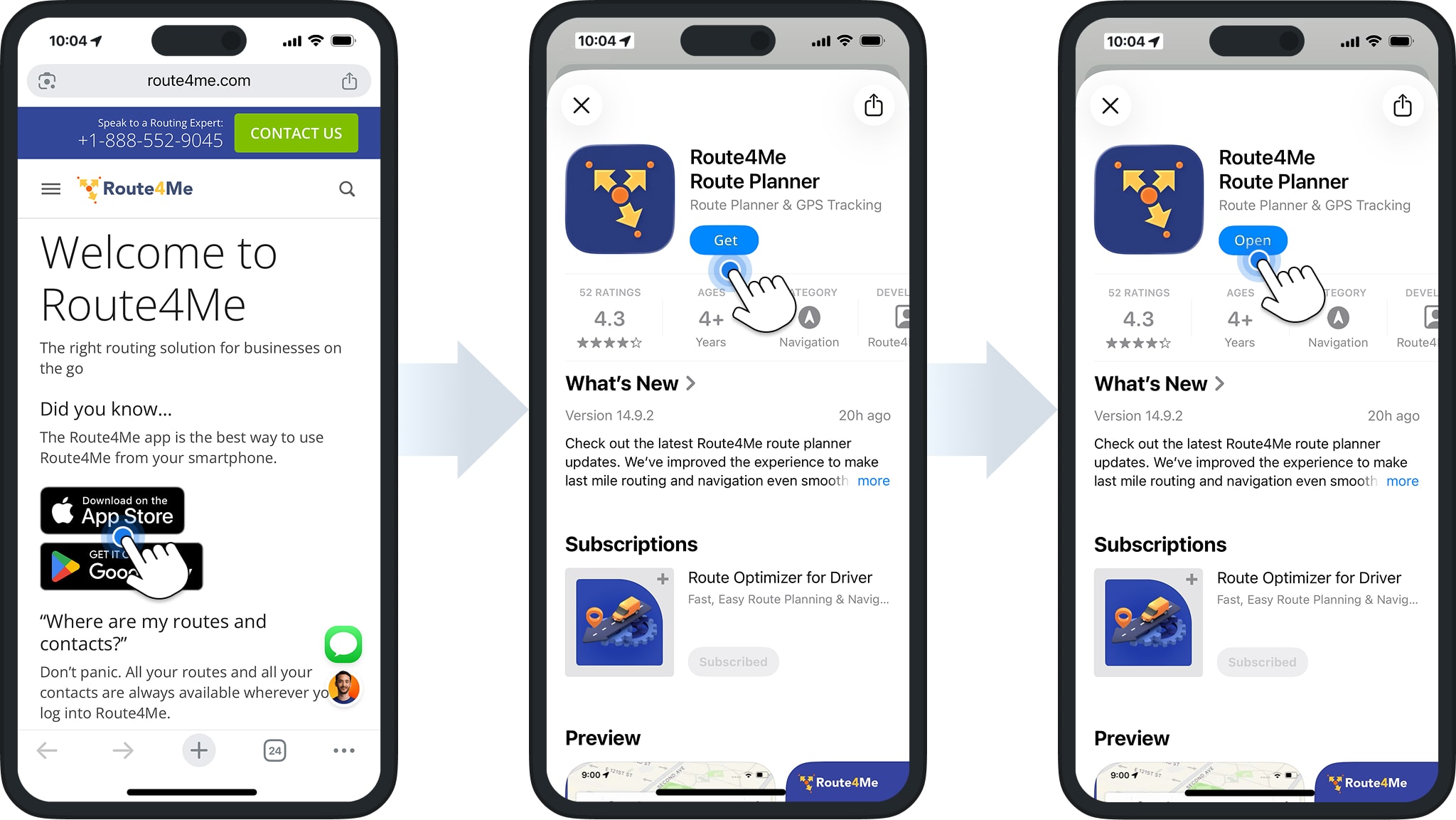
After creating your account and tapping “Continue“, you will be directed to a welcome page where you can download the app for iOS from the Apple App Store. To install, simply tap “Get“, then “Open“.
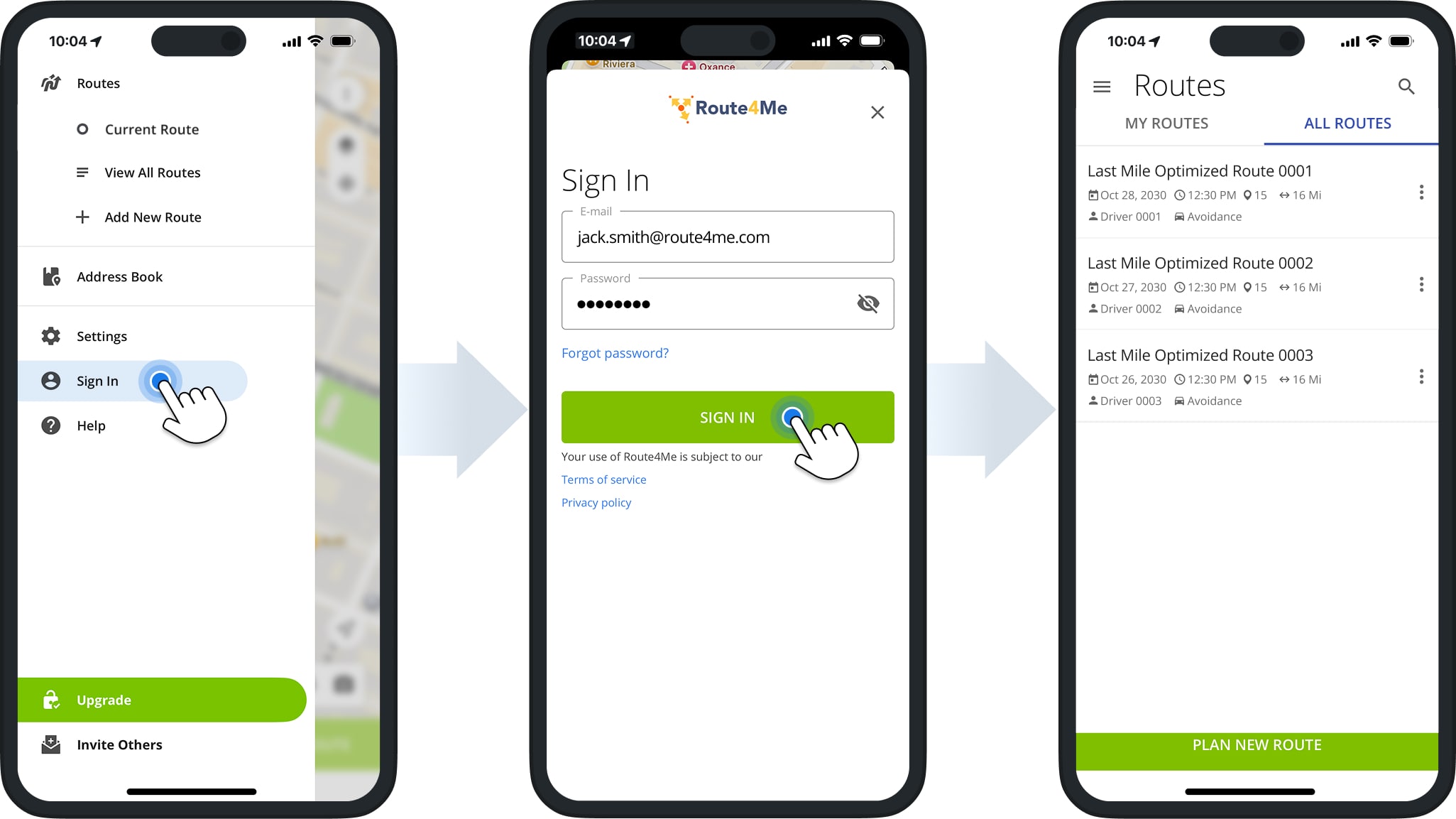
Once installed, you can sign in to the app using your assigned credentials. Once signed in, you will be able to access your assigned routes, as well as route management, navigation, stop tracking, and proof of delivery features.
For any issues during account setup, installation, or subscription, be sure to contact your manager or Route4Me Support.
Visit Route4Me's Marketplace to Check Out More Add-Ons and Modules:
- Route Optimization
Address Book and Territories Planning
- Operations
Custom Data Add-On
About author: Daniel Archer

